
How to set fraud filters and custom fraud rules in Converge
To set fraud filters in Converge, go to Settings, select Fraud Prevention Tools and set the rules you need. Fraud filters (also called fraud rules) protect your online transactions from authorization testing, where fraudsters run stolen card numbers through your page to see which ones work.
On this page
Before you start
- Only users with edit business rule” rights are able to modify rules
- Make sure you are setting the rules on the right terminal
How do I set fraud filters in Converge?
- Go to Settings
- Select Fraud Prevention Tools
- Set the appropriate rules

Which fraud rules can I set?
These are the fraud rules most accounts have in Converge. The guide linked at the end of this article covers them in more detail.
Shipping, billing or IP country blacklist
Decline transactions when the shipping country, billing country or IP address matches a country you have blacklisted.
Velocity filters
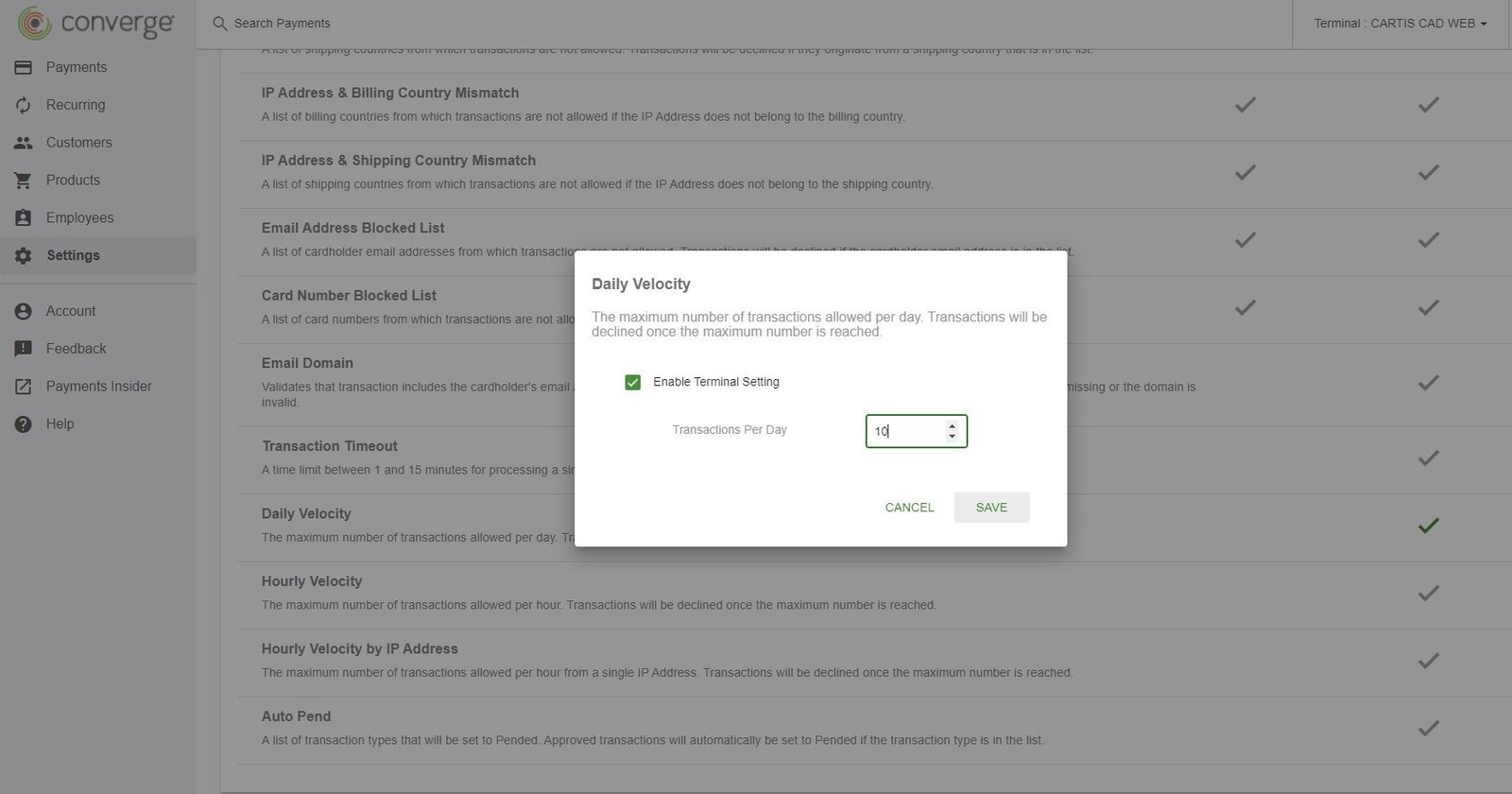
A velocity filter sets the maximum number of transactions you will accept through your terminal or website. You can set it per day, per hour, per hour by IP address, or all three.
To set velocity filters:
- Select the option to set (i.e. daily)
- Check off Enable Terminal Setting
- Enter the amount of transactions (note: anything above this amount will not go through)
- Press Save
Auto Pend
Auto Pend holds certain transactions, such as refunds, so you can review them for legitimacy before they go through.
How do I set custom fraud rules?
Custom rules are on the tab next to fraud rules on the fraud prevention rule screen. A custom rule can send a transaction for review, decline it, or send you an email whenever a situation you define occurs.
Common custom rules:
- Maximum transaction amount: transactions above your threshold are declined automatically or pended for review.
- CVV / AVS match: CVV is the security code on the card, and AVS (address verification) compares the billing address the customer enters with the one the card issuer has on file. Both help make sure a transaction isn’t being made with a stolen card. You can set transactions with an incorrect CVV or AVS to decline automatically.
Where can I read more about Converge fraud rules?
Common questions
What is a custom fraud screen filter?
It’s a rule you define yourself in Converge, on the custom rules tab, that sends a transaction for review, declines it, or emails you when a set situation occurs. Setting a maximum transaction amount is a common example.
Can I set rules to flag high-risk transactions?
Yes. A custom rule can send matching transactions for review (pended) instead of declining them, and Auto Pend can hold transactions such as refunds until you review them.
Updated November 2, 2026
Still stuck? Talk to a person.
Our team answers the phone.
Taking payments with Converge? See Converge from Cartis