
Converge login: signing in for the first time
The Converge login page is https://www.convergepay.com/converge-webapp/#!/login. The first time you sign in, use the Account ID, User ID and temporary password our support team emailed you; Converge then asks you to set security questions and a new password.
On this page
How do I log in to Converge?
Go to https://www.convergepay.com/converge-webapp/#!/login. Converge works best in Chrome or Internet Explorer.
Sign in with the credentials our support team created and emailed to you directly. We send an Account ID, a User ID and a temporary password for each of the first users you asked us to set up.

What happens the first time I sign in?
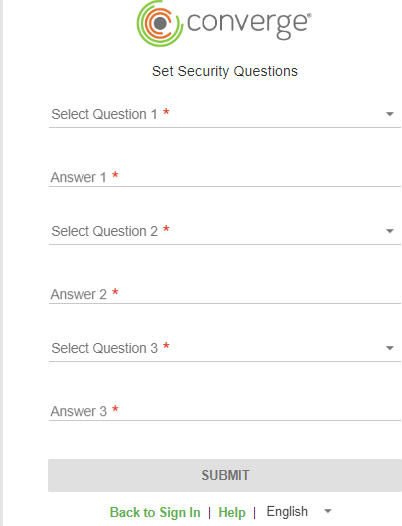
Converge asks you to set your security questions and answers, and a new password.

How do I choose which terminal to work in?
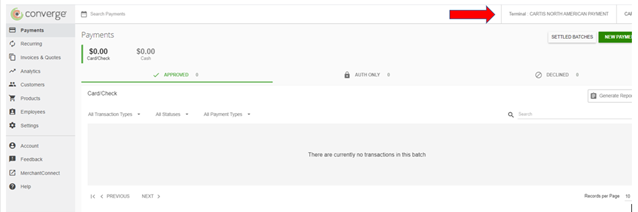
Once you’re signed in you land on the Main screen, which shows the current batch: the transactions taken since your last settlement. Depending on how your account is set up and what your user can access, you may have more than one terminal, for example one terminal ID for keyed or card-present sales and another for internet or ecommerce sales. Use the terminal drop-down to choose the one you want to view or work in.

What should I set up next?
You can start taking payments now. Depending on your needs and setup, you may also want to do any of these:
- Start taking payments for manually keyed transactions (see How To: Complete Sale in Converge)
- Start taking mobile payments (see How To: Use Converge Mobile)
- Add employees (users) to the system (see Setting Up Your Users In Converge)
- Confirm / Change auto settlement time (see How To: Change Auto Settlement Time In Converge)
- Change the friendly name of the terminal (see How To: Change Terminal Name In Converge)
- Customize email receipts (see How To: Setup Email Receipts In Converge)
- Customize payment fields (see How To: Customize Payment Fields In Converge)
- Setup enabled value added services like Billing and Invoicing, Tokenization (see How To: Setup Invoices in Converge, How To: Use Tokenization (Card Manager/Customers) in Converge )
*Note: must have these features enabled on your account - Configure API Setting like generating buy button/link, setting up hosted payment page, whitelisting IPs (see How To: Generate Buy Button in Converge, How To: Setup Hosted Payment Page/Module in Converge, How To: Whitelist IPs/URLs in Converge)
*Note: must have ecommerce on account to use these features - Review and Setup Fraud Prevention/Processing Rules (see How To: Setup Fraud Prevention/Custom Processing Rules in Converge)
- Test out integrated/ecommerce payments – For merchants using software which has integrated to Converge for integrated payments or who have accounts setup for 100% ecommerce, Converge will only serve as the backend for the transaction flows. There may be additional requirements for setup of your customized system, our support team will work to get you set up and configured.
Common questions
What is the Converge (convergepay.com) login address?
I don’t have a Converge login. How do I get one?
Your first logins are created by our support team and emailed to you directly. If you don’t have yours, contact Cartis at 1-888-712-0770 or email support@cartispayments.com.
Updated November 2, 2026
Still stuck? Talk to a person.
Our team answers the phone.
Taking payments with Converge? See Converge from Cartis