
Ingenico Move 5000 (US): WiFi setup, download, EMV key load and settlement
This guide covers common tasks on the Ingenico Move 5000 (US): connecting to WiFi, setting the communication type, running a download and EMV key load, settling the batch and turning on semi-integrated mode.
On this page
How do I connect the Move 5000 to WiFi?
The first time you turn the terminal on, it asks you to set up WiFi. Press Enter (green) key to configure WiFI. If that prompt doesn’t appear, follow these steps:
- From idle screen (home screen) press the silver circle key (a.k.a F key)

- Select Admin Mode
- Enter admin password (if you do not know what this is, please reach out to our support team)
- Select Control panel
- Select Terminal settings
- Select Communication means
- Select WiFi
- Choose scan networks
- Select your network and enter the passowrd
If successfully connected the WiFi symbol should turn green.
Another way: through Tetra Admin
If the terminal is already set to WiFi, you can also connect to your network this way:
- Select Admin Mode
- Enter admin password (if you do not know what this is, please reach out to our support team)
- Select Tetra Admin
- Select 3 - Configure Wi-Fi
- Select 1 - Scan Networks
- Choose your WiFi network name
- Enter your WiFi password and press Enter (green key)
If successfully connected the WiFi symbol should turn green.
How do I confirm the communication type is set to WiFi?
- Press .,#*
- Enter ID and password if prompted and press Enter
- Select Setup Menu
- Select Communications
- Select ComsPriority
- Select Elavon EMV (if prompted)
- Key in
400and press Enter* if you key in something different let us know so we can also update it on the back end
- Press Cancel until temrinal returns to idle screen
How do I run a file download?
- From idle screen (home screen) press the silver circle key (a.k.a F key)
- Select Admin Mode
- Enter admin password (if you do not know what this is, please reach out to our support team)
- Select Tetra Admin
- Select Download Application
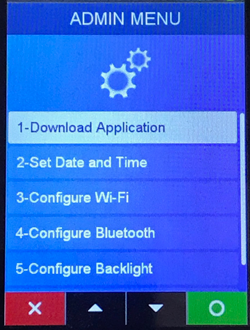
- Select Configure Download
- Select your connected network type: i.e. WiFi, press enter.
- Press red button once
- Select Start Download
- On download package screen no name is needed, press Enter
The device will reboot several times. Once it’s back on the idle screen, the download is complete. You may need to reconnect to your WiFi network afterwards.
How do I do an EMV key load?
Always do an EMV key load after a download. EMV is the chip-card standard, and this step reloads the keys the terminal uses for chip cards.
- From home (idle) screen, hit #
- Select host management
- Select EMV public key load
- Select 1st option.
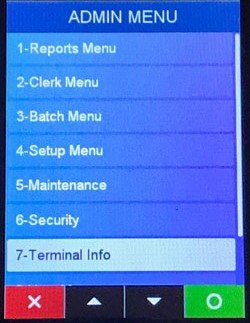
How do I open the admin menu?
From idle screen press .,#* key to get to admin menu options
How do I start a sale, return or void?
From idle screen press the Green (Enter) button and make your selection
- 0 – Sale
- 1 – Return
- 2 – Void
- etc…
How do I settle the batch manually?
- From idle screen press the Green (Enter) button
- Select 8 - Settlement
- Select Yes to close batch
How do I enable semi-integrated mode?
Semi-integrated mode links the terminal to your point-of-sale software. First, your terminal file (the terminal’s setup file) has to be built as a semi-integrated file. Our support team can confirm this.
Once the semi-integrated file is downloaded (using the download steps above), turn the mode on from the semi-integrated menu:
- From the idle screen press #
- Select 8 - Misc options
- Configure communications / port # etc…
- Configure receipt options
- Once configured from the misc options screen select semi integ and turn on to enable.
Common questions
Where is the menu button on the Move 5000?
Press .,#* from the idle screen for the admin menu. For Admin Mode (WiFi and download settings), press the silver circle key, also called the F key.
Why does my Move 5000 say “EMV key load required”?
Run the EMV key load steps above. You should always do one after a download.
I don’t know the admin password. What do I do?
Contact the Cartis support team at 1-888-712-0770 or support@cartispayments.com.
Updated November 2, 2026
Still stuck? Talk to a person.
Our team answers the phone.
Need terminals for another location? See Cartis POS terminals