
How to set up users in Converge
To add a user in Converge, go to the Employees tab, click Create New Employee, fill in the required fields, choose a terminal and a User Rights Profile, then click Save. Our support team often sets up your first users for you. You can add more yourself.
When a new company needs to start using Converge to process payments, you will need to create a user for them and assign permissions.
On this page
How do I create a new user in Converge?
- Go to Employees tab. Click Create New Employee.
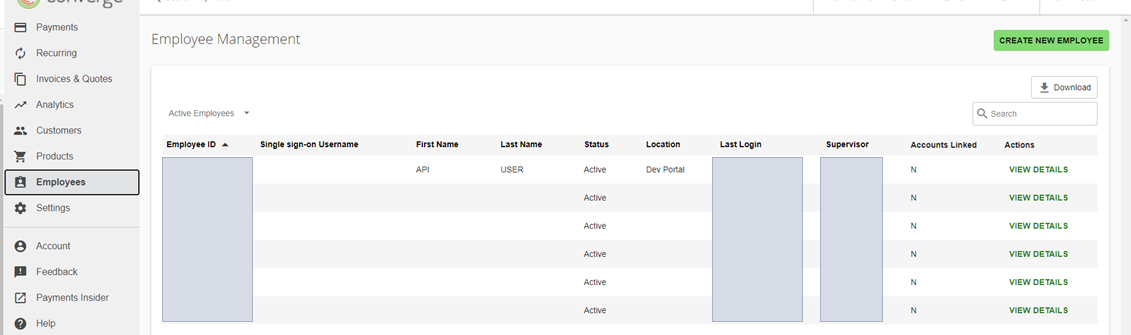
- Fill in the required fields on the Create New Employee form. Required fields are marked with an asterisk. Select the terminal you want the user to access. You can select the terminal from the drop-down list. Click Save or Cancel.
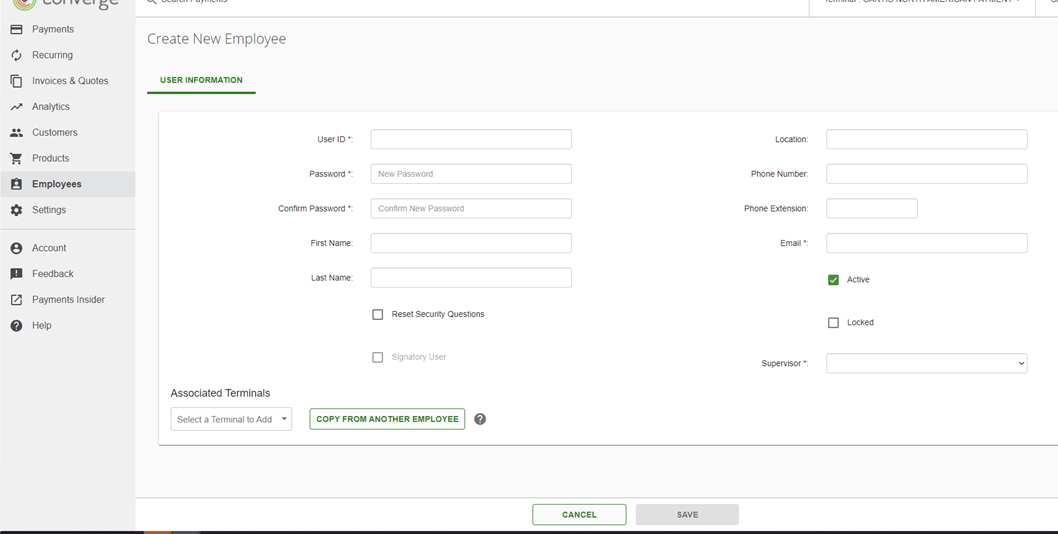
- Select a User Rights Profile for the new user.

- Click Save or Cancel.
Which User Rights Profile should I choose?
| Profile | What the user can do |
|---|---|
| None | Nothing: no permissions in Converge. |
| Standard | Charge basic transactions. |
| Manager | Everything in Standard, plus return transactions, batch transactions, tokenization transactions, and billing and invoicing. |
| Administrator | Every permission available in Converge. |
Can I give a user custom permissions?
Yes. Instead of using a profile as it is, open each section (Transactions, Batch, and so on) and select only the permissions that user needs.
Updated November 2, 2026
Still stuck? Talk to a person.
Our team answers the phone.
Taking payments with Converge? See Converge from Cartis