
How to complete a sale in Converge with a connected card reader / PIN pad
To run a card-present sale in Converge with a connected card reader or PIN pad, click NEW PAYMENT, enter the amount, choose CREDIT CARD, SALE and INSERT / SWIPE, press START TRANSACTION, have the customer insert, swipe or tap, then press PAY.
On this page
Before you start
Before you can run a sale using a Converge supported peripheral device, you will need to download Converge Connect and connect your card reader / pin pad.
How do I start the sale in Converge?
- Click on NEW PAYMENT

- Enter the sale amount in the Amount Section
- Under the Order Section, depending on the configuration of your account / terminal some options may vary.
- Payment Type – select CREDIT CARD for a credit card transaction.
- Transaction Type – select SALE
- Entry Type – For card present transactions select INSERT / SWIPE
- Press on START TRANSACTION

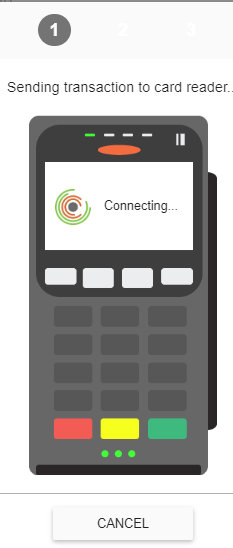
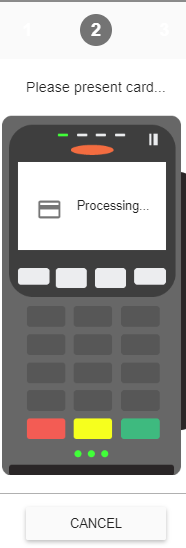
The transaction amount will be sent to the card reader / pin pad and you should see the following screens displayed on Converge: 1- Card reader connecting and 2 – transaction ready for processing.
How does the customer present the card?
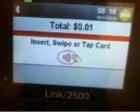
The card reader shows the amount and asks the customer to insert, swipe or tap the card.
- If the card has an embedded microchip, insert the chip end of the card into the card reader with the chip facing up. Please note, the card must be inserted throughout the transaction.
- If it is not a chip card, swipe the card
- Converge supported devices also accept contactless transactions via card or mobile wallet such as ApplePay® or AndroidPay™. To use this feature, tap the card or mobile phone against the card reader / pin pad.
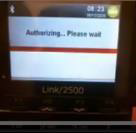
Once card is tapped/swiped/inserted accordingly the card reader / pin pad will display authorizing and on your Converge screen you will see 3 – Reading Card

How do I finish the sale?
Your screen now shows the payment page with the card number and expiry filled in. You can add any optional information here (i.e. customer code, invoice #, descriptor, billing / shipping address).
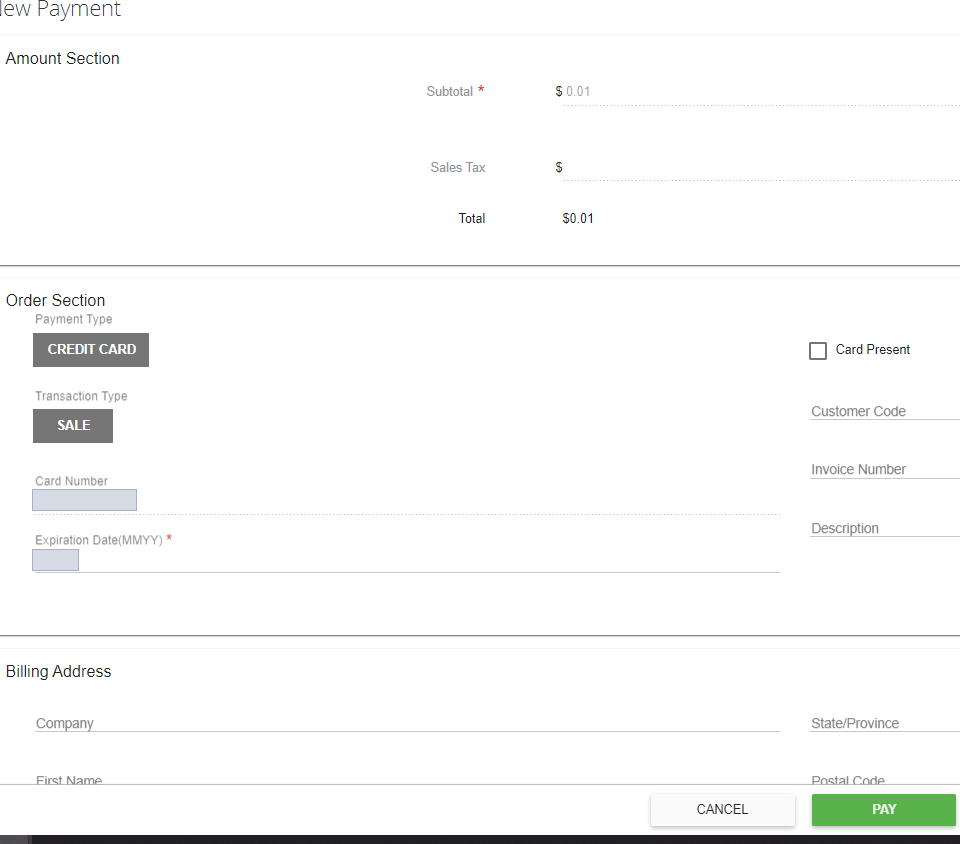
When ready to submit the transaction, press PAY
You’ll get an approval or declined pop-up window, depending on whether the transaction was successful or declined, and an internal copy of the receipt (merchant copy followed by customer copy) that you can access later. The transaction now displays under your current batch, and you’re back on the New Payment Screen to process your next transaction.
If you need help, contact Cartis Payments at 1-888-712-0770 or support@cartispayments.com.
Updated November 2, 2026
Still stuck? Talk to a person.
Our team answers the phone.
Taking payments with Converge? See Converge from Cartis