
How to connect a card reader or PIN pad to Converge by USB (Converge Connect)
To connect a card reader or PIN pad to Converge by USB, download and install Converge Connect on your computer first, then plug in the device and press refresh devices in the Converge Connect status window. Converge Connect is the program that lets the card reader or PIN pad talk to the Converge User Interface (UI).
On this page
Before you start
- Do not plug in the card reader prior to the install
- Requirements: you must be using a Windows 10 or greater computer and Chrome / Edge for your browser. Do not use Safari or Firefox.
Converge supports peripheral pin pads such as the Lane 3000/ Lane 5000, Desk1500 (Canada) and card readers like the Link 2500 for secure EMV and NFC (tap) payments in person.
How do I download Converge Connect?
Once you have your Converge credentials from us:
- Log into Converge
- Click on your User ID on the top right corner
- Select Support/Downloads
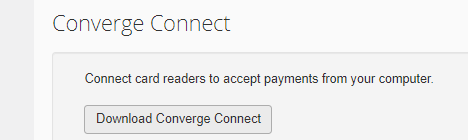
- Click on Download Converge Connect

How do I install Converge Connect?
- From the downloads folder, right click the convergeconnect.exe file and run as administrator.
- When download completes, plug in the card reader and restart your computer.
The Converge Connect icon should now appear in your system tray (right side corner by the clock).

How do I check that Converge Connect is running?
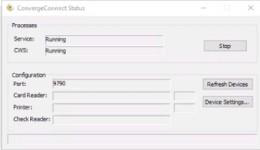
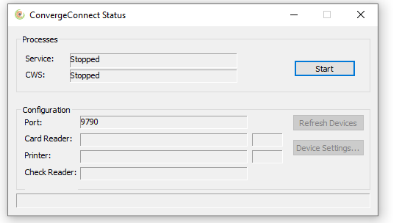
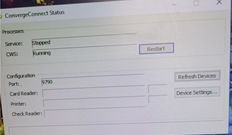
- Double click on the icon in your system tray to open up the Converge Connect Status window
- Confirm both Services and CWS say running. If they do not, press restart
How do I connect a Link 2500 card reader?
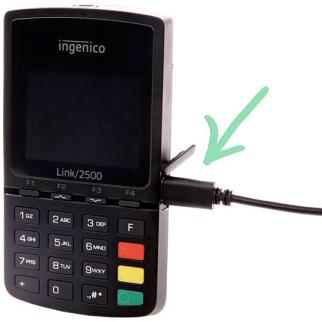
Connect the USB cable to your computer and to the card reader, the unit will automatically begin to boot up. A firmware update may be required and can take up to 20 minutes to complete.
The screen the unit boots to tells you whether it needs the update:
- If when the unit boots up you get to the Welcome screen, firmware update is not required.
- If when the unit boots up you get to a screen that says TSA / Lane Closed, firmware update is required

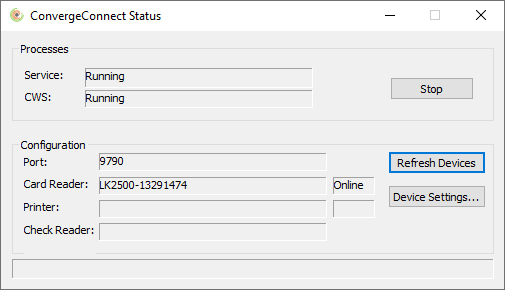
- Press refresh devices on the Converge Connect status window (you may need to do this two times)
If a firmware update is required it should automatically start, the unit will reboot several times throughout and you will know it was updated successfully when you reach the welcome screen. If no firmware update is required the serial # should populate in the card reader field and you are ready to run a sale in Converge.
If the update doesn’t start, or the serial # doesn’t populate, use the troubleshooting sections below.
What if the Link 2500 stays on Lane Closed and the update doesn’t start?
Use this if you are on the Lane Closed screen and the update does not start when pressing Refresh Devices on the Converge Connect status window.
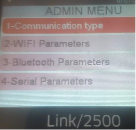
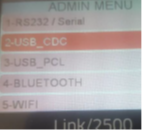
- Press 0003 on the Link 2500 unit then
- 1- communication type
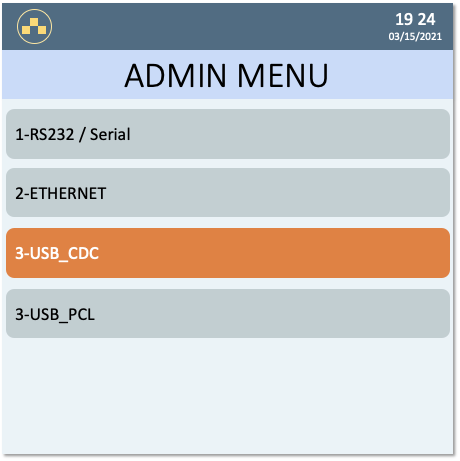
- 2 – USB_CDC
- 3- x – red button
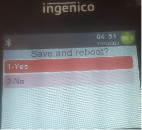
- 1 – yes to save and reboot
- Once the unit reboots, press refresh devices on the Converge Connect status window and this should initiate the update.
In the “3- x – red button” step, press the red (cancel) button. The unit then asks whether to save and reboot.
If after the reboot it goes back to the Lane Closed screen press refresh devices two more times, it will prompt a 3rd reboot and the version code should be 5.08.08-003 (as of September 2021).
At this point pressing refresh devices should populate the serial # and you are ready to run a sale in Converge.
What if the Link 2500 is on the Welcome screen but the serial # doesn’t populate?
Use this if you are at the welcome screen but the serial # does not populate when pressing Refresh Devices on the Converge Connect status window.
- Press 0001 on the Link 2500 unit then
- 1- communication type
- It should be 2 – USB_CDC, if it is on anything else, select 2 – USB_CDC
- 3- x – red button
- 1 – yes to save and reboot
- Once it boots back up and you are at the welcome screen, press refresh devices on the Converge Connect status window and it should populate the serial #.
What if the serial # still doesn’t populate?
Use this if the serial # still does not populate after confirming/switching communication type to 2 – USB_CDC. Depending on the version of Converge Connect you will have either a STOP or RESTART button.
If you have a STOP button
- Press and wait until Services and CWS say stopped. (If they do not both read stopped, unplug the card reader from USB and press stop again until they both say stopped, then plug the card reader back in)
- Press Start – services and cws should now say running
- Press refresh devices – serial # should now populate.
- If it still does not populate, while card reader is plugged in press yellow key and # together until unit reboots. Once rebooted run through the stop/start/refresh sequence above.
If you have a RESTART button
If you have Restart option: press Restart, confirm both services and cws say running and press refresh devices.
How do I connect a PIN pad (IPP320, Lane 3000/5000)?
The same general steps above for connecting the Link 2500 via USB apply to the pin pads. Plug in via USB, open Converge Connect Status window, press refresh to populate the serial # and then you can start a sale using Converge.
If the serial # does not populate, you will want to confirm the pin pad is configured for USB connection.
IPP320
- During reboot, at the copyright screen quickly press 2,6,3,4 and green button
- Press F
- Select 3 – TDA by pressing 3 on keypad
- Select 0 – Configuration
- Press green button (Enter)
- Select 0 – communication
- Press green button (Enter)
- Select 3 -USB <> Serial
- Press green button (Enter)
- Press red (cancel) button until at the save and reboot screen
- Select 1 – yes
- Press green button (Enter)
Device will restart and when back at welcome screen, you can now press refresh devices on Converge Connect status window to detect the serial #.
Lane 3000/5000
From the welcome screen press 0001, communication type and select USB_CDC then save and reboot

Common questions
What is Converge Connect?
It’s the program you install on your computer so a USB card reader or PIN pad can communicate with the Converge User Interface (UI). Once it’s installed, its icon sits in your system tray by the clock.
Where do I download Converge Connect?
In Converge: click your User ID in the top right corner, select Support/Downloads, then click Download Converge Connect.
Can I use a Mac, Safari or Firefox?
No. The requirements are a Windows 10 or greater computer and Chrome or Edge. Do not use Safari or Firefox.
Updated November 2, 2026
Still stuck? Talk to a person.
Our team answers the phone.
Taking payments with Converge? See Converge from Cartis