
How to change the receipt paper roll (Desk 5000 / Move 5000)
To put a new paper roll in an Ingenico Desk 5000 or Move 5000, open the printer latch, drop the roll into the paper well with the loose end coming from the bottom of the roll toward the back of the terminal, pull about 2.5 cm of paper over the lid, and snap the lid shut.
On this page
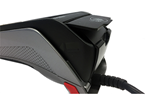
How do I open the printer?
Lift latch and pull back to open the lid to access the paper well.
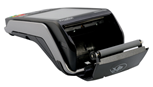
How do I put the paper roll in?
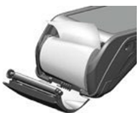
- Insert the roll into the well with the loose end unrolling from the bottom of roll toward the back end of the terminal. **If replacing existing roll, be sure to remove the old core
- Extend the paper roll about 2.5 cm over the top of the lid
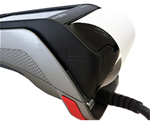
How do I close the lid?
Close the lid by snapping it back into place. Make sure paper unrolls over top of lid and not on top of screen.
Common questions
Why is my receipt printing blank?
If the roll is not properly inserted, your receipt will print blank. Open the printer lid and re-insert the roll so the loose end unrolls from the bottom of the roll toward the back of the terminal.
Do I need to take out the old roll first?
Yes. If you’re replacing a roll, remove the old core (what is left of the old roll) before you put the new roll in.
Where does the paper go when I close the lid?
Over the top of the lid, not on top of the screen. Leave about 2.5 cm of paper sticking out when you close it.
Updated November 2, 2026
Still stuck? Talk to a person.
Our team answers the phone.
Need terminals for another location? See Cartis POS terminals