
How to set up a Desk 5000E terminal
To set up a Desk 5000E terminal, insert the paper roll, connect the blue Ethernet cable from the ETH port on the Multi-port Box to your router, then connect the power. When it’s connected properly, the terminal powers on and the connection indicator turns green.
On this page
How do I insert the paper roll?
If the roll is not already inserted, follow the inserting thermal receipt paper roll article.
How do I connect the terminal to the internet?
- Plug one end of the blue Ethernet Cable into the port labelled ETH on the Multi-port Box.
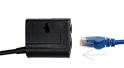
- Plug the other end of the blue Ethernet Cable into the router/hub for your internet.
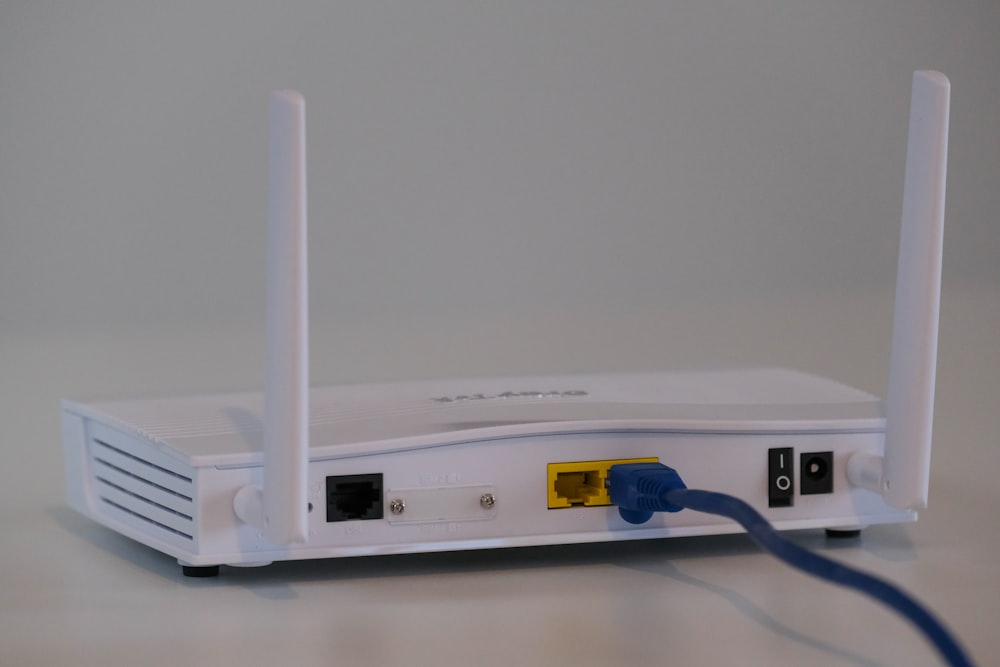
How do I connect the power?
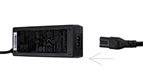
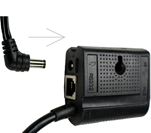
- Connect the plug connector into the adaptor box
- Insert power cable’s barrel connector into the port box
- Plug the other end of the power cable into a power source.

If everything is connected properly, the terminal powers on and the connection indicator on the screen should be green.

What is the administrator ID and password?
The terminal comes preprogrammed with a default admin ID of 1 and a password. You need these for some functions. For security, call or email our support team to get your password.
What do I do once it’s connected?
Run a test transaction to check it works. For the steps, see how to complete a credit or debit sale.
Updated November 2, 2026
Still stuck? Talk to a person.
Our team answers the phone.
Need terminals for another location? See Cartis POS terminals