
How to complete a new credit card sale in Converge
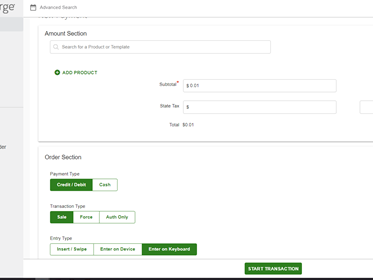
To complete a new credit card sale in Converge, click NEW PAYMENT, enter the amount, choose CREDIT CARD, SALE and ENTER ON KEYBOARD, press START TRANSACTION, then enter the card details and press PAY.
On this page
Before you start
If you have multiple terminal IDs associated with your account /user ID (i.e. CAD/USD, MOTO/Internet, or multiple pin pad / card reader terminals), make sure to first select the correct terminal ID from the terminal drop down menu on the top right corner.
How do I run a credit card sale in Converge?
- Click on NEW PAYMENT

- Enter the sale amount in the Amount Section
- Under the Order Section, depending on the configuration of your account / terminal some options may vary.
- Payment Type – select CREDIT CARD for a credit card transaction.
- Transaction Type – select SALE
- Entry Type – For manually keyed in transaction – select ENTER ON KEYBOARD.
- Press on START TRANSACTION
- For manually keyed (entered on keyboard) transactions proceed to enter the required fields: card number, expiry date and CVV2 along with any optional information you wish to add (i.e. customer code, invoice #, descriptor, billing / shipping address).
If you have tokenization enabled on your account you can search for an existing customer or enter a token number.
When ready to submit the transaction, press PAY
You’ll get an approval or declined pop-up window, depending on whether the transaction was successful or declined, and an internal copy of the receipt (merchant copy followed by customer copy) that you can access later. The transaction now displays under your current batch, and you’re back on the New Payment Screen to process your next transaction.
Updated November 2, 2026
Still stuck? Talk to a person.
Our team answers the phone.
Taking payments with Converge? See Converge from Cartis
More in Converge (UI) How To Guide
- How to change or reset your password in Converge
- How to change the language in Converge
- How to change user rights in Converge
- How to complete a sale in Converge with a connected card reader / PIN pad
- How to connect a card reader or PIN pad to Converge by USB (Converge Connect)
- How to import a batch in Converge (CSV or XML)