
How to settle a batch manually in Converge
To settle a batch manually in Converge before your automatic settlement time, select Payments, click Settle All (or select the transactions you want to settle) and confirm. Otherwise, Converge settles automatically at the end of every day.
On this page
How do I settle a batch manually?
- Select Payments in the Converge left menu bar.
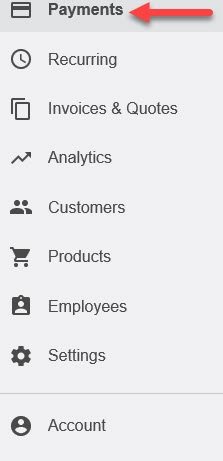
- Click Settle All. Or select the specific transactions you want to settle

- Select Cancel or Confirm when prompted.

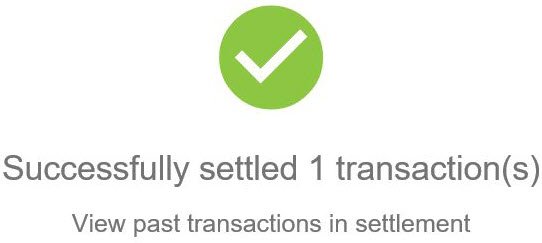
A message confirms that the transactions were settled.
Can every Converge account settle manually?
No. Accounts set up for Multi-Currency Conversion can’t be settled manually. Everything in the Current Batch is settled automatically, all together, to get the best exchange rate.
Updated November 2, 2026
Still stuck? Talk to a person.
Our team answers the phone.
Taking payments with Converge? See Converge from Cartis
More in Converge (UI) How To Guide
- How to change or reset your password in Converge
- How to change the language in Converge
- How to change user rights in Converge
- How to complete a new credit card sale in Converge
- How to complete a sale in Converge with a connected card reader / PIN pad
- How to connect a card reader or PIN pad to Converge by USB (Converge Connect)