
How to import a batch in Converge (CSV or XML)
To import a batch in Converge, choose New Payment, then Import Transactions, then Import New, and upload a .csv or .xml file in the batch import file format. Batch import works for transactions, recurring / installments and token generation.
On this page
How do I import a batch in Converge?
- From the main screen (Payments Screen), click the New Payment drop-down menu. Choose Import Transactions.

- From the Import Transactions screen, Choose Import New.

- You will need to format your imported files using the Batch Import File Format. The formats are explained in the next section.
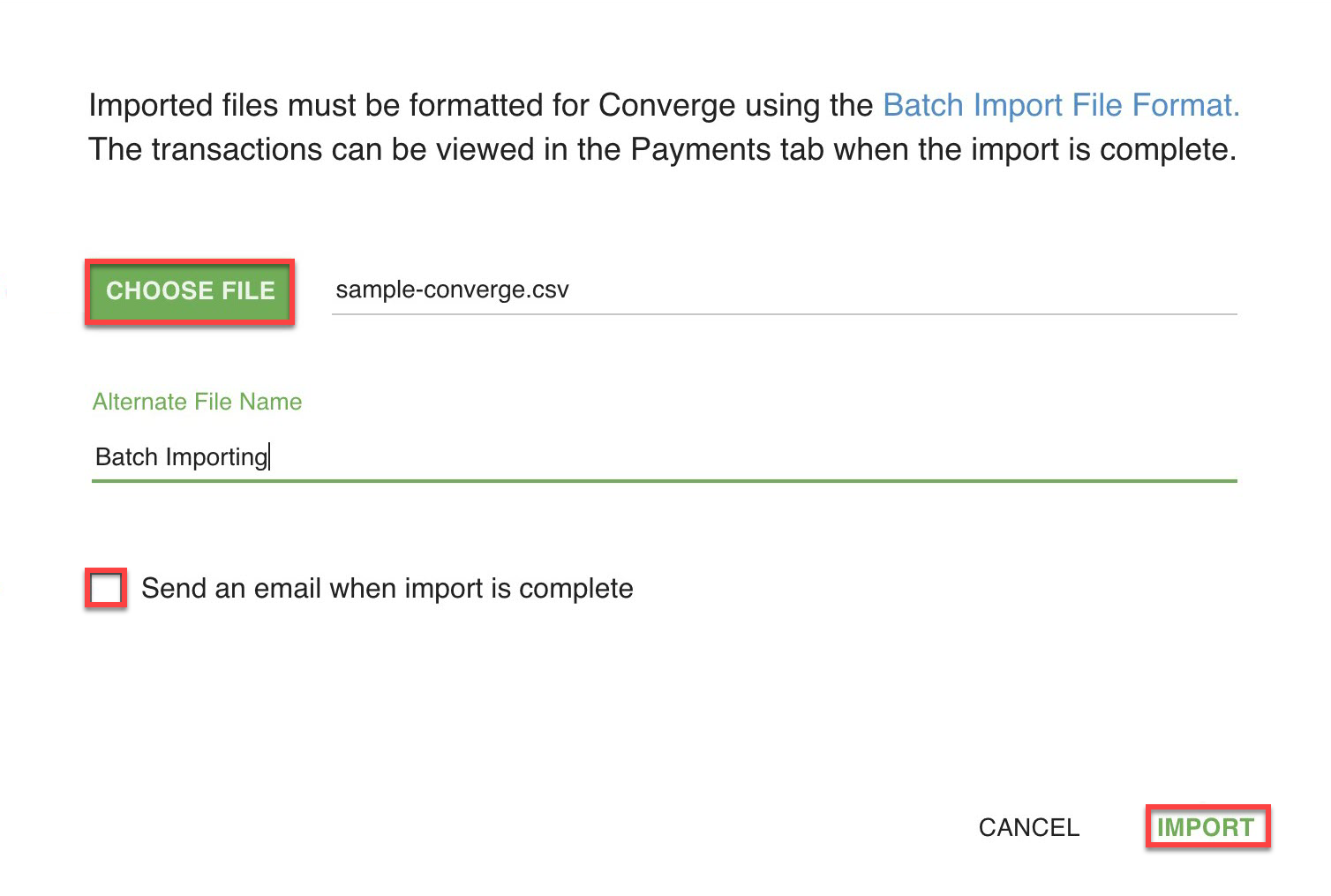
- Click Choose File to select the file you want to import.
Set a file name less than or equal to 25 characters, otherwise it will default to the name of the uploaded file.
You can select to be notified by email when the import is finished by checking off the Send an email when import is complete check box. Click Import.
Once the batch has imported successfully, Converge shows a message to let you know.
How do I format the batch import file?
You can import a comma-delimited file (.csv) or an XML file (.xml). The full list of import fields is in Batch_Import_Fields.pdf.
CSV format (credit card transactions)
- Header: first line of file, contains all field names, field names must be enclosed within double quotes and followed by a comma.
- Transaction data: begins after the header line, each transaction data should be on a single line, transaction data must be enclosed within double quotes and followed by a comma.
Example of a credit card transaction CSV file:
"ssl_card_number","ssl_exp_date","ssl_amount","ssl_transaction_type",
"0000000000000000","1212","2.00","ccsale",
"0000000000000000","1213","5.00","ccforce",
XML format (credit card transactions)
- File contains single <txnimport> element and multiple transaction <txn> nested elements
- Every transaction is a set of XML tags and all elements must be closed in the order they were opened.
Example of a credit card transaction XML file:
<txnimport>
  <txn>
    <ssl_card_number>0000000000000000</ssl_card_number>
    <ssl_exp_date>1212</ssl_exp_date>
    <ssl_amount>2.00</ssl_amount>
    <ssl_transaction_type>ccsale</ssl_transaction_type>
  </txn>
  <txn>
    <ssl_card_number>0000000000000000</ssl_card_number>
    <ssl_exp_date>1213</ssl_exp_date>
    <ssl_amount>5.00</ssl_amount>
    <ssl_transaction_type>ccforce</ssl_transaction_type>
  </txn>
</txnimport>
Token generation and recurring / installment files
For token generation and recurring / installment imports, see:
How many transactions can I import?
- You can only import one file at a time, up to 10 files per day per terminal ID.
- A single import can have a max of 500 transactions. If you need to increase this amount, please reach out to Cartis support.
Updated November 2, 2026
Still stuck? Talk to a person.
Our team answers the phone.
Taking payments with Converge? See Converge from Cartis
More in Converge (UI) How To Guide
- How to change or reset your password in Converge
- How to change the language in Converge
- How to change user rights in Converge
- How to complete a new credit card sale in Converge
- How to complete a sale in Converge with a connected card reader / PIN pad
- How to connect a card reader or PIN pad to Converge by USB (Converge Connect)