
How to process an ACH (e-check) sale in Converge
To process an ACH (e-check) sale in Converge, click NEW PAYMENT, enter the amount, choose Check as the payment type, enter the bank details and press PAY. ACH E-Check is an add-on that must be approved and added to your account first.
On this page
What is ACH E-Check?
ACH stands for Automated Clearing House. ACH E-Check lets you hand key a check (type in its bank details) to capture and process the transaction. It’s a value-add feature, so it has to be approved and added to your account before you can use it.
How do I process an ACH check sale?
If ACH E-Check is enabled on your account:
- If you have multiple terminal IDs associated with your account / user ID (e.g. CAD/USD, MOTO/Internet), make sure to first select the correct terminal ID from the terminal drop down menu on the top right corner.
- Click on NEW PAYMENT
- Enter the sale amount in the Amount Section
- Under the Order Section Payment Type – select Check for a check transaction
- Click on START TRANSACTION
- At minimum you will be required to enter the bank account number, bank routing number and the bank account type (personal or business)
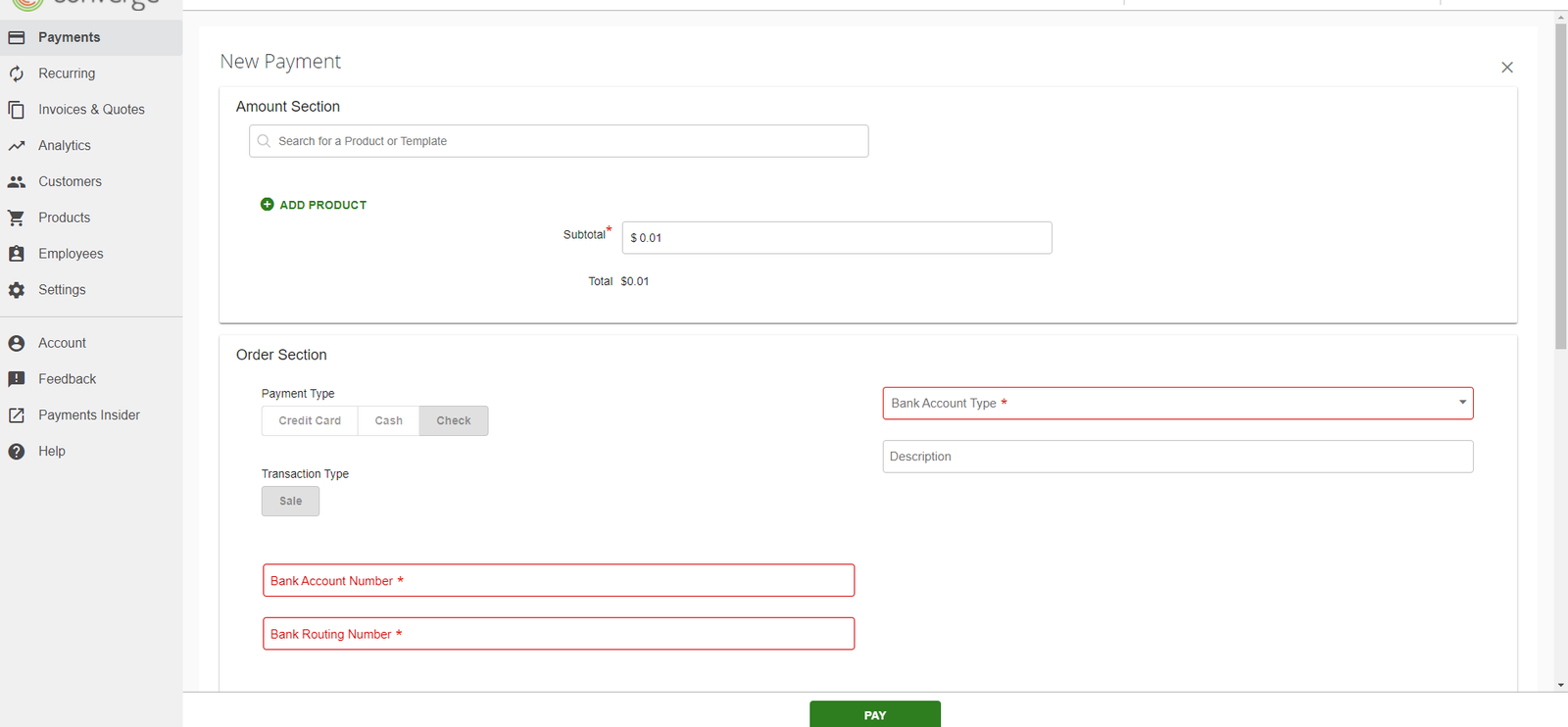
All other information is optional.
- Agree to the terms confirming that you have collected the customer’s authorization for an electronic fund transfer (EFT)
- When ready to submit the transaction, press PAY
Updated November 2, 2026
Still stuck? Talk to a person.
Our team answers the phone.
Taking payments with Converge? See Converge from Cartis
More in Converge (UI) How To Guide
- How to change or reset your password in Converge
- How to change the language in Converge
- How to change user rights in Converge
- How to complete a new credit card sale in Converge
- How to complete a sale in Converge with a connected card reader / PIN pad
- How to connect a card reader or PIN pad to Converge by USB (Converge Connect)