
How to refund a transaction in Converge
To refund a transaction in Converge, go to Payments > Settled Batches, open the batch, select the transaction, click Refund, enter the amount and click Issue Refund. Once a transaction has settled you can’t void it, so a refund is the way to give the money back.
On this page
How do I refund a settled transaction in Converge?
You can refund the full amount or part of it.
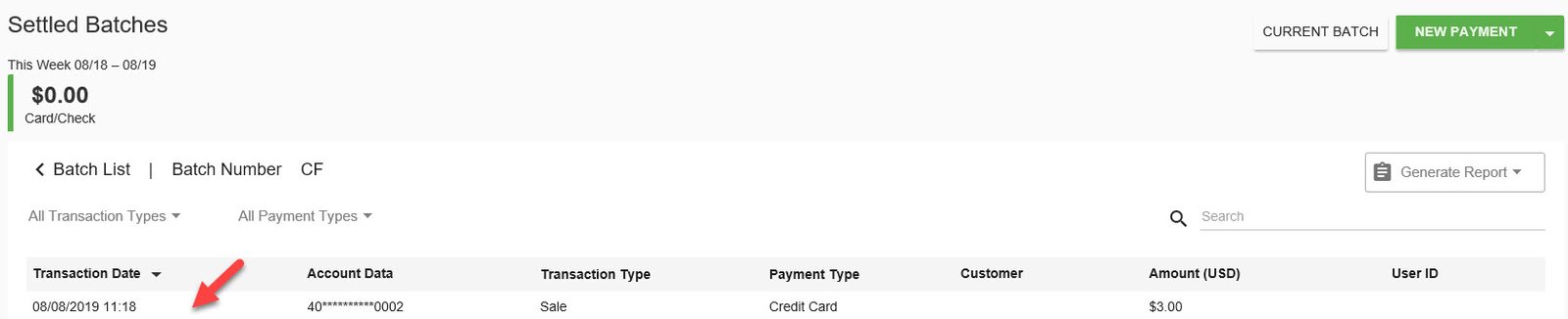
- In Converge, click the Payments tab. Next, click Settled Batches.

- Find the batch and Click on it to open.

- Select the transaction to be refunded. Clicking on the transaction will open the Transaction Details screen.
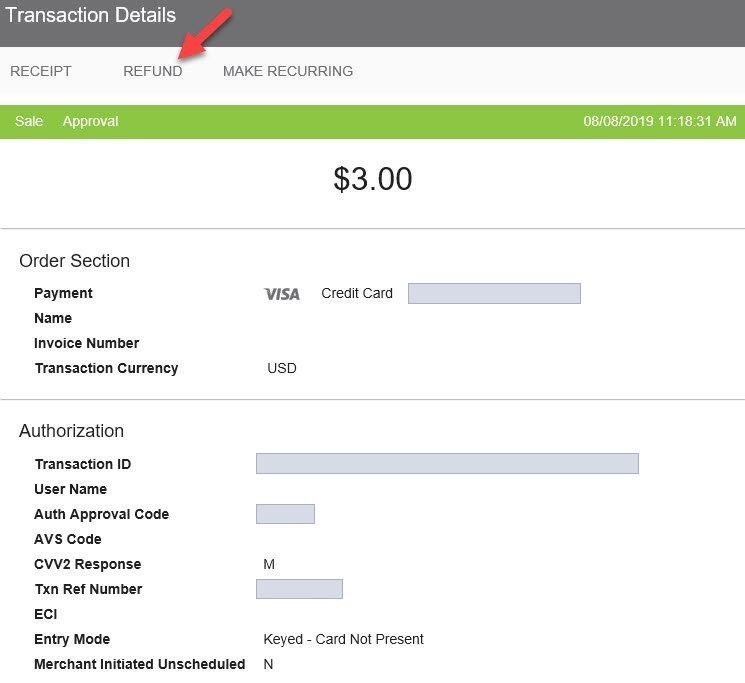
- Click Refund at the top of the screen. The original sale amount will be displayed.
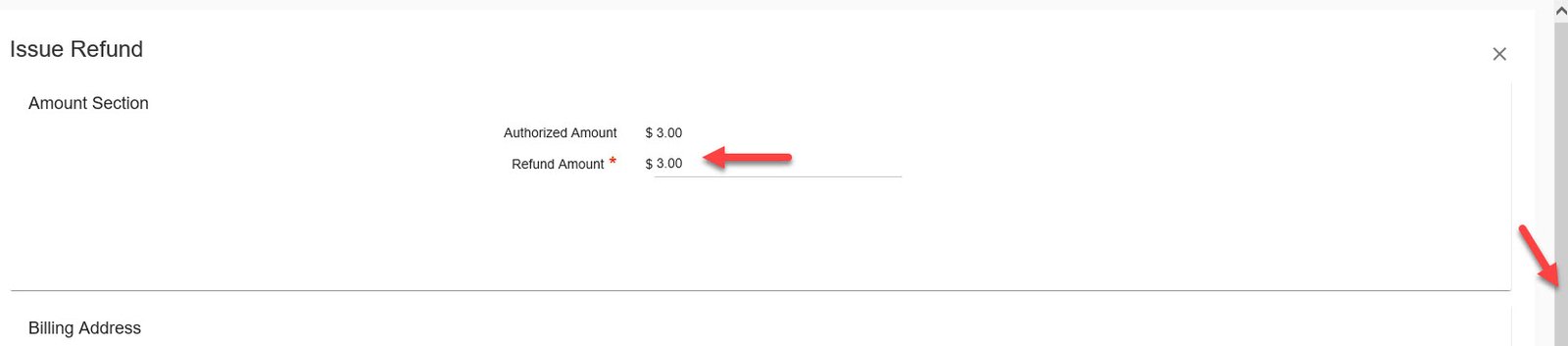
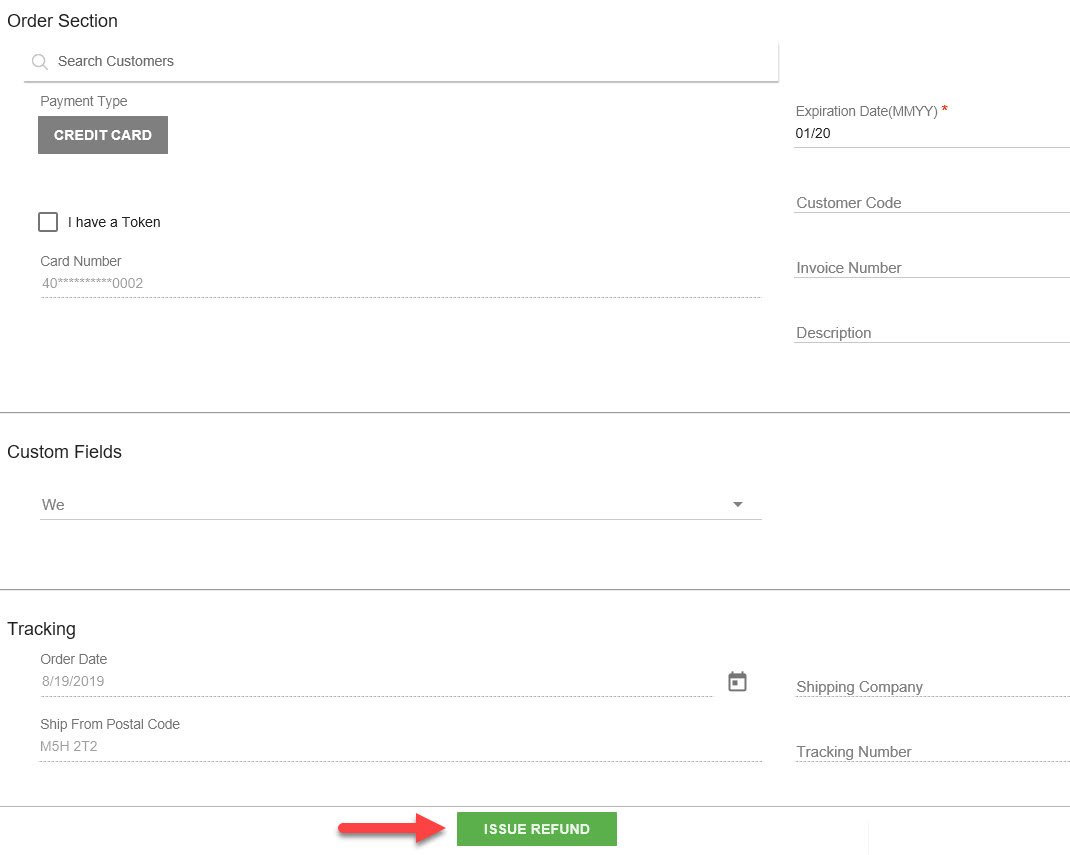
- From the Issue Refund screen, enter Refund Amount (you can issue full refund or partial refund). Scroll down to view the information from the original sale in the remaining sections. Add or correct information if needed.
- Click Issue Refund to complete the transaction.
If it worked, the refund shows in your current batch and settles at your usual batch time. The cardholder is refunded in the next 3-5 business days, though it can take up to 7-10 business days for them to see the funds, depending on their card issuer.
How do I force a refund without the original sale?
Use this if you need to refund a transaction in Converge but can’t find the original sale, or the original sale has no refund option. You complete a new, stand-alone refund instead.
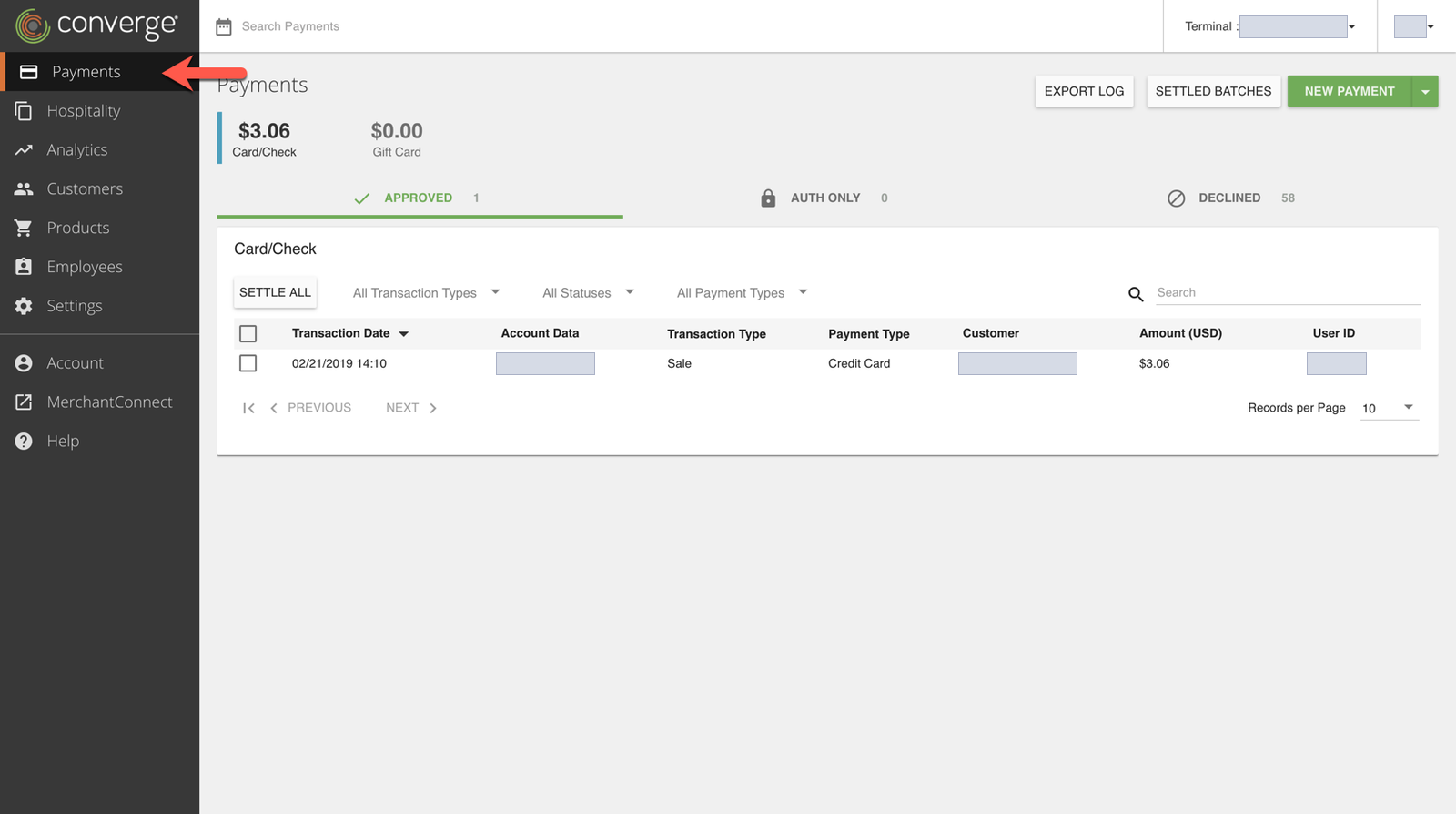
- Click on Payments .
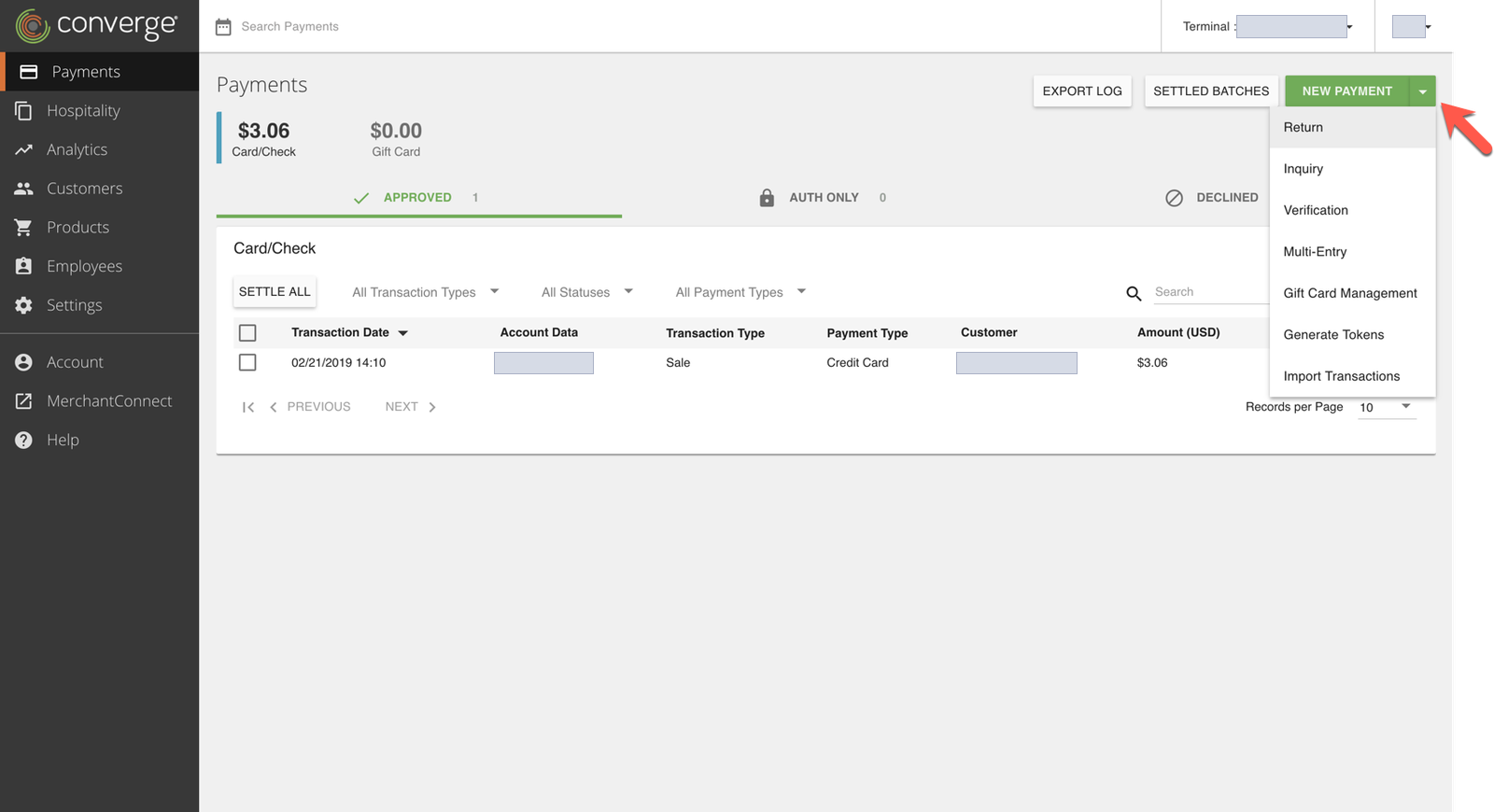
- From the Payments page select Return from the New Payment drop-down.
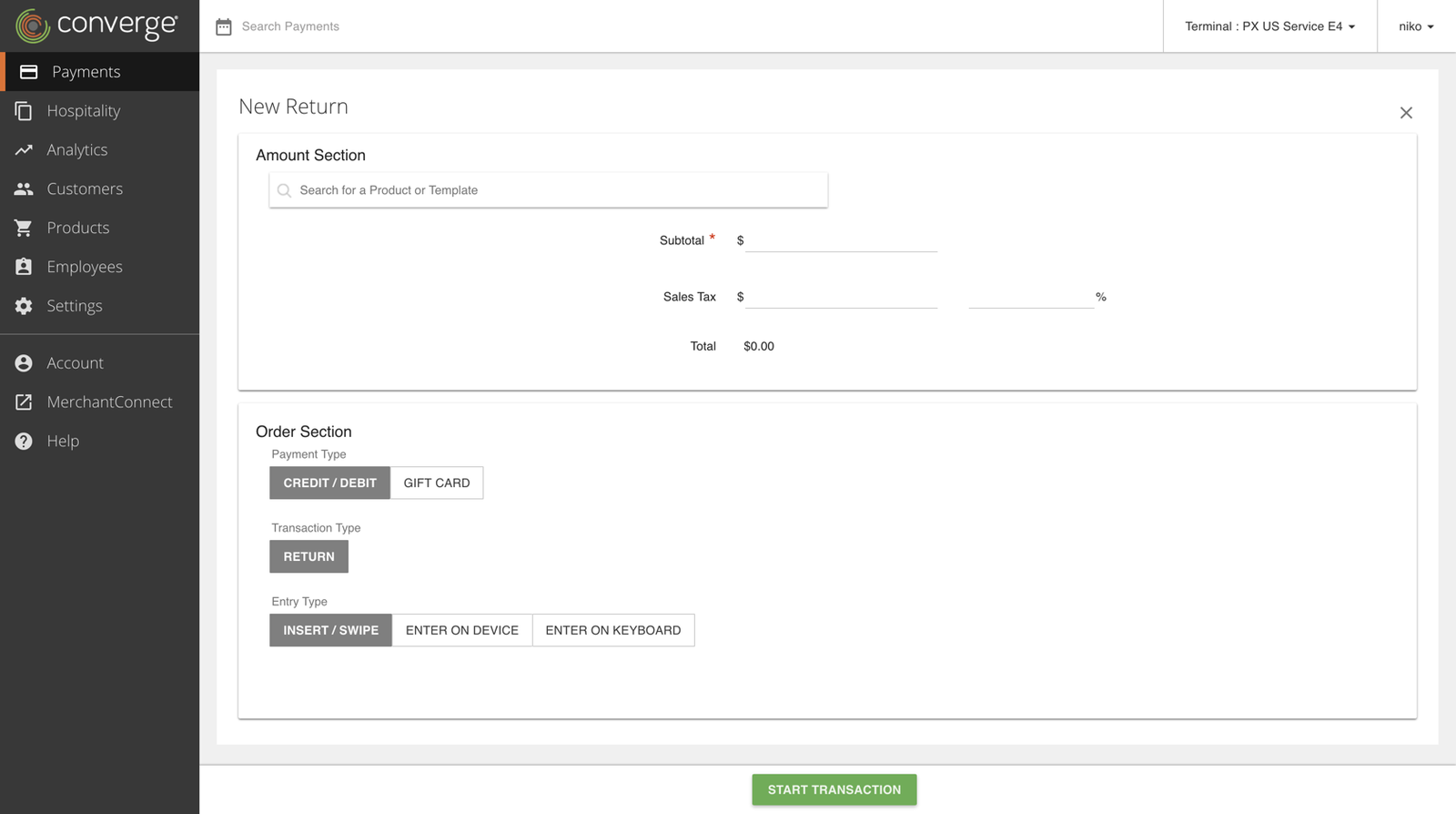
- Converge will take you to the New Return page.
- Fill in the amount to refund in Subtotal field.
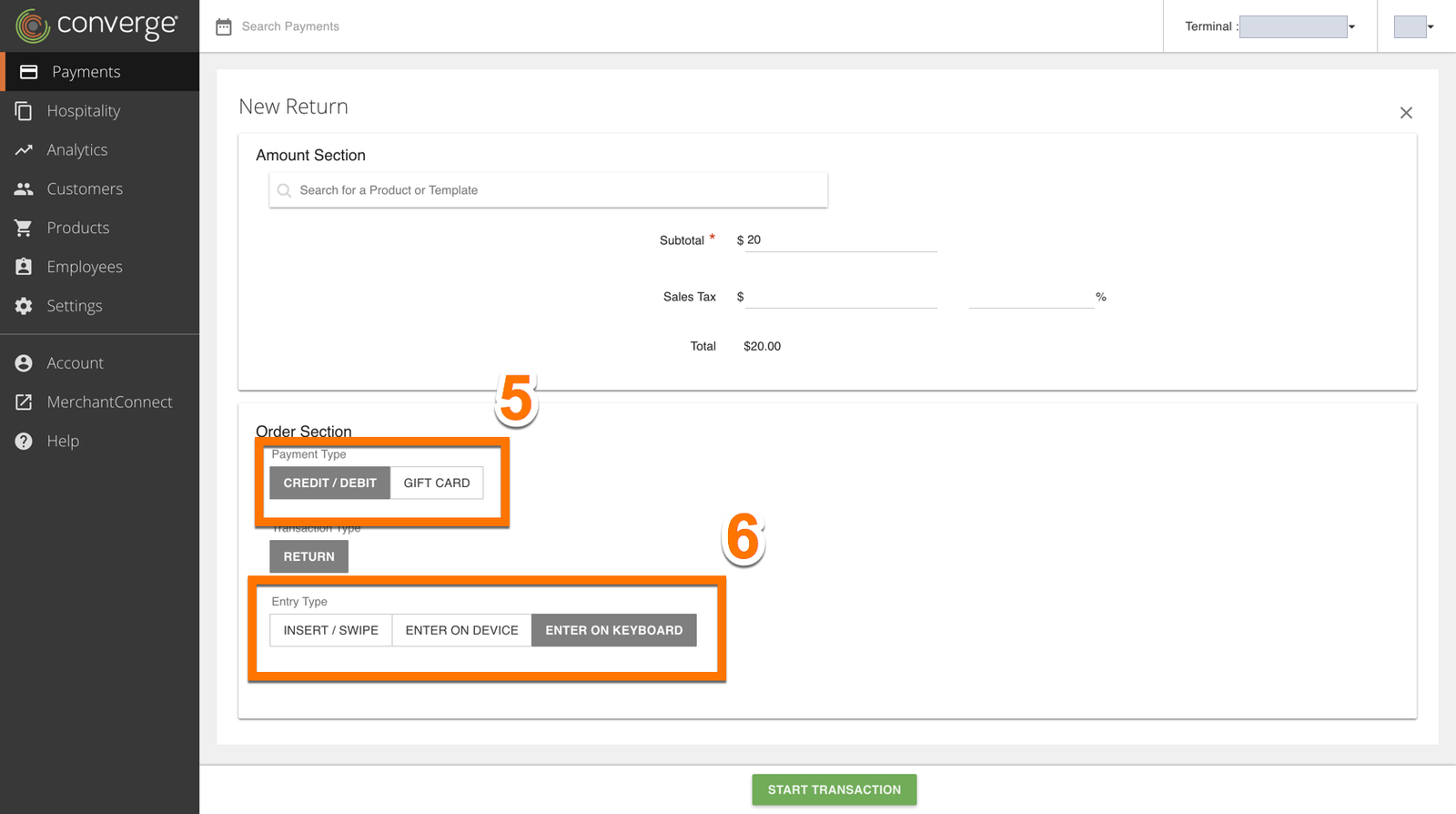
- Select which type of payment card this refund will go to.
- Choose Enter on Keyboard.
- Click Start Transaction.
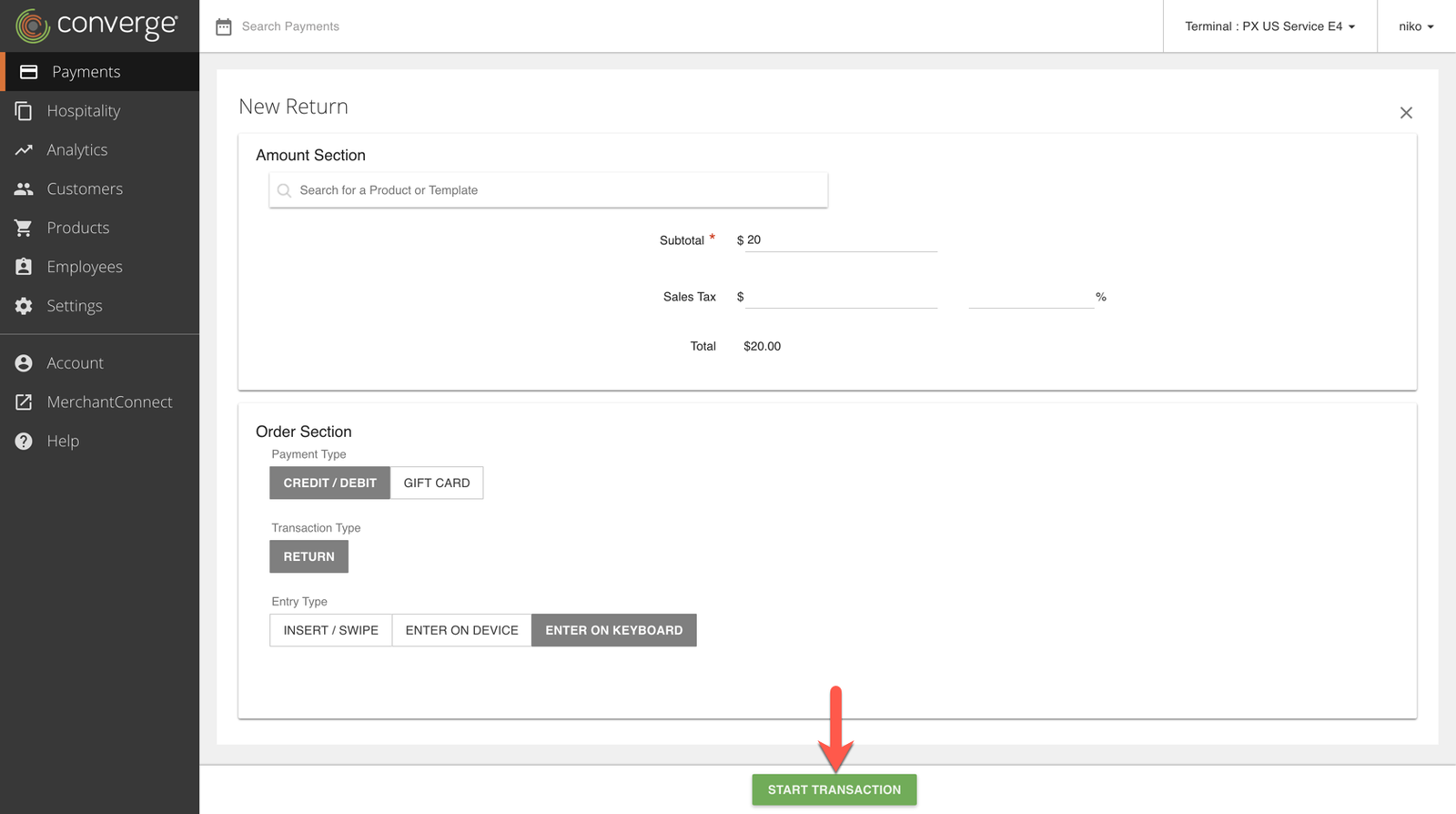
- Converge will display additional fields you can fill out.
- If you have token (customers) enabled, on the Order section screen, enter the name of the customer into the Customer Search Bar to locate the customer’s payment information. Or, manually enter the card information to process the refund.
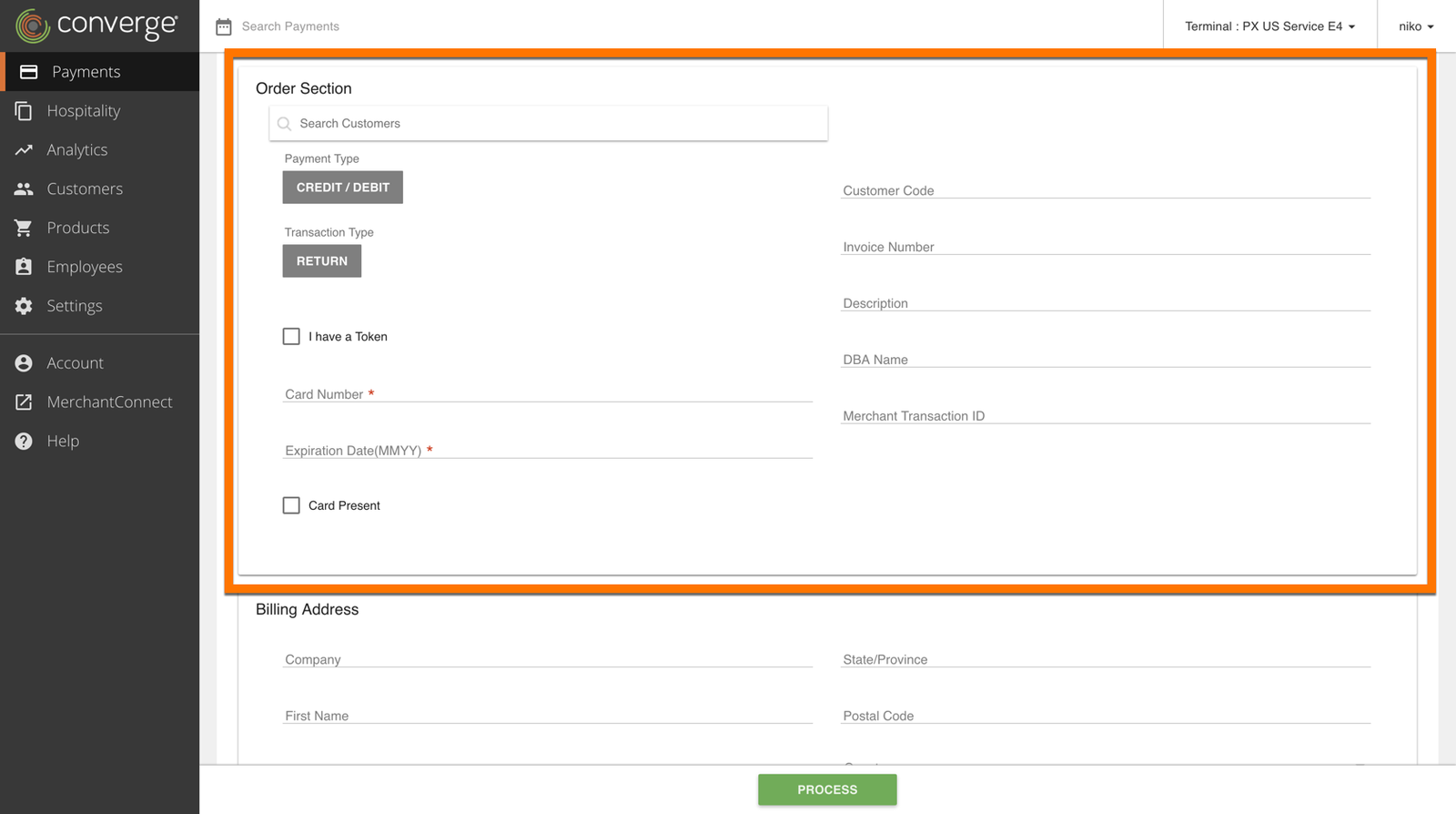
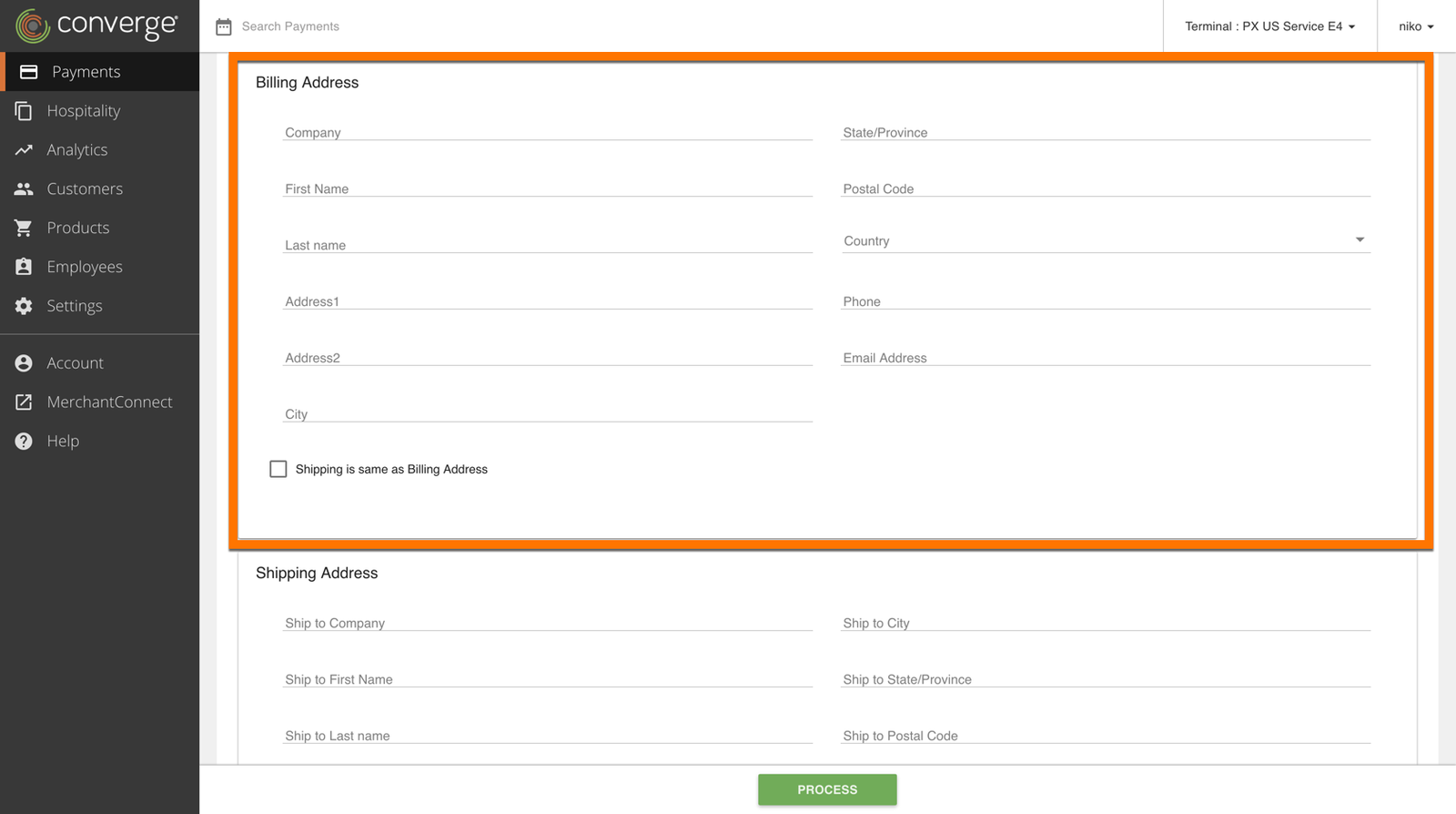
- Scroll down to the Billing Address section.
- If the billing address is not already included in the customer’s profile (or if you entered the customer’s information manually), you may enter the customer’s billing information here (optional).
- When you are finished entering your customer’s information, click Process to complete the transaction.
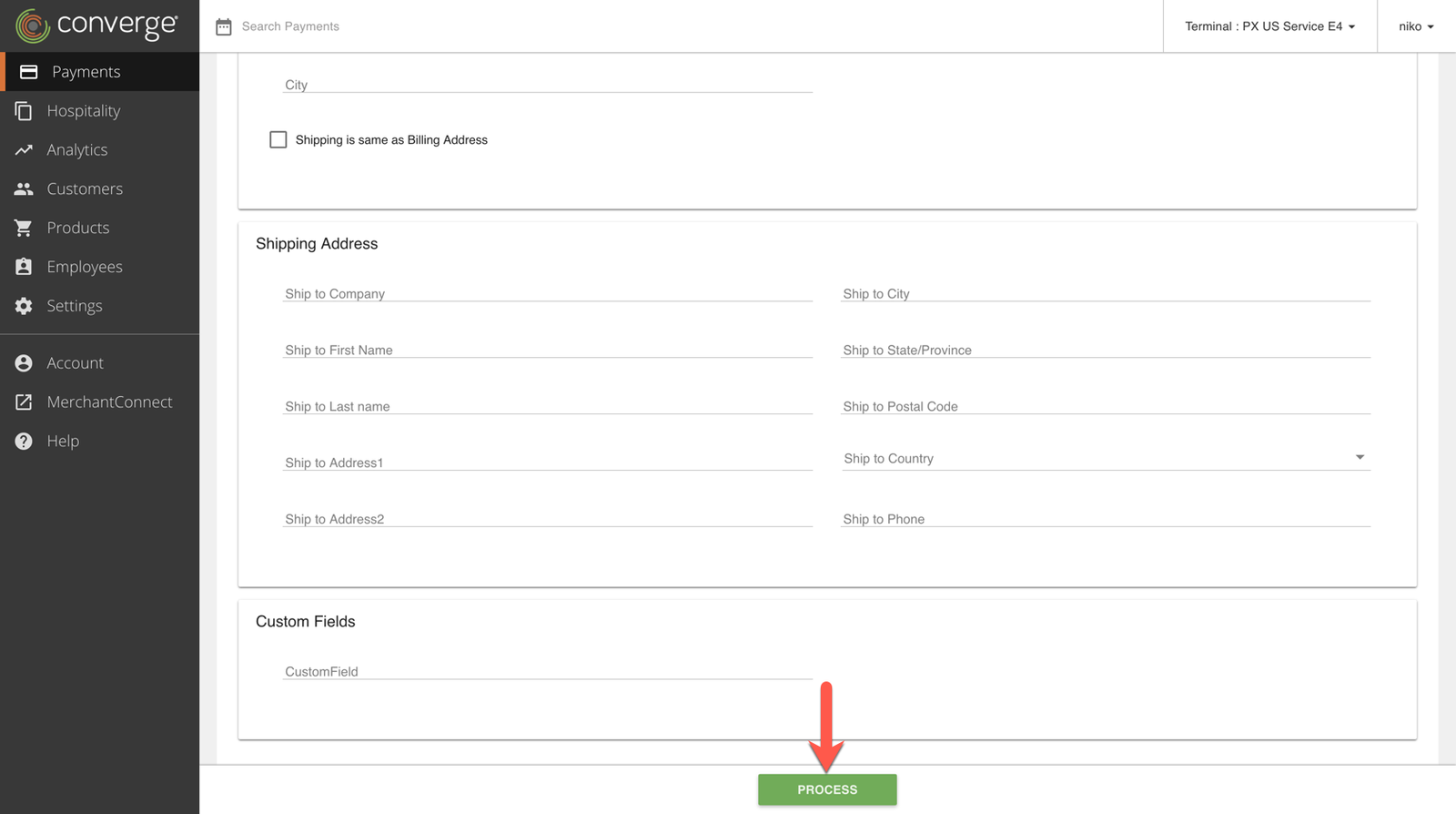
If it worked, the refund shows in your current batch and settles at your usual settlement time. The cardholder is refunded in the next 3-5 business days, though it can take up to 7-10 business days for them to see the funds, depending on their card issuer.
Common questions
How long does a Converge refund take to reach the cardholder?
The refund settles with your batch. The cardholder is refunded in the next 3-5 business days, and it can take up to 7-10 business days for them to see the funds, depending on their card issuer.
Can I refund part of a payment in Converge?
Yes. On the Issue Refund screen, enter the amount you want to give back. You can issue a full or partial refund.
Why can’t I do a refund without the original sale?
Since April 2023, stand-alone refunds are disabled for users. If you have a use case that needs it, contact Cartis support (1-888-712-0770, support@cartispayments.com) to have the user right enabled.
Updated November 2, 2026
Still stuck? Talk to a person.
Our team answers the phone.
Taking payments with Converge? See Converge from Cartis
More in Converge (UI) How To Guide
- How to change or reset your password in Converge
- How to change the language in Converge
- How to change user rights in Converge
- How to complete a new credit card sale in Converge
- How to complete a sale in Converge with a connected card reader / PIN pad
- How to connect a card reader or PIN pad to Converge by USB (Converge Connect)