
How to reset security questions in Converge
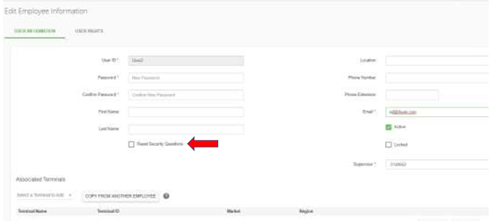
To reset your own Converge security questions, go to Account in the left side menu and complete the Update Security Questions section. To reset another user’s security questions, go to Employees, select the user and check off Reset Security Questions.
On this page
How do I reset my own security questions?
- Go to Account in the left side menu of Converge.
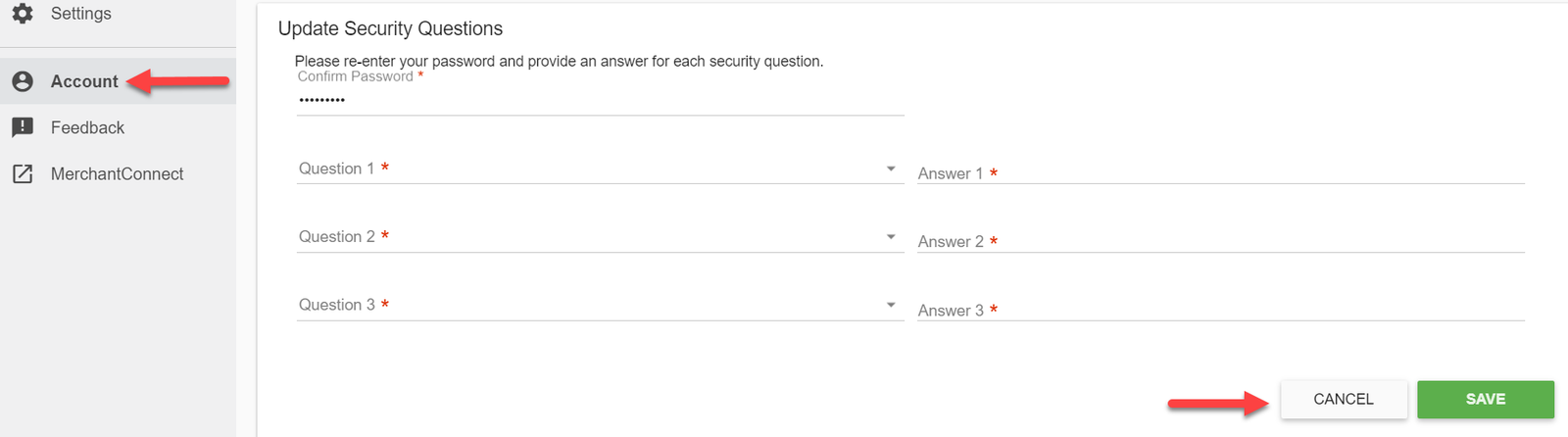
- Complete all of the fields in the Update Security Questions section. Click Cancel or Save.
If you click Save, an Updated Security Questions Successfully Saved message will appear. If you click Cancel, the update will not be completed.
How do I reset another user’s security questions?
- Go to Employees in the left side menu of Converge. On the Employee Management page, select the user you want to reset questions for.

- Check off the Reset Security Questions checkbox and click Cancel or Save.
Common questions
I forgot my security questions. What do I do?
Ask a user who has rights to manage other users to reset your security questions from the Employee Management page, using the steps above. For other help, contact Cartis support at 1-888-712-0770 or support@cartispayments.com.
Why can’t I reset another user’s security questions?
You need user rights that allow you to manage other users.
Updated November 2, 2026
Still stuck? Talk to a person.
Our team answers the phone.
Taking payments with Converge? See Converge from Cartis
More in Converge (UI) How To Guide
- How to change or reset your password in Converge
- How to change the language in Converge
- How to change user rights in Converge
- How to complete a new credit card sale in Converge
- How to complete a sale in Converge with a connected card reader / PIN pad
- How to connect a card reader or PIN pad to Converge by USB (Converge Connect)