
How to void a transaction in Converge
To void a transaction in Converge, select it under Payments, click VOID and confirm. You can only void a transaction before it is batched and processed (settled). After that, issue a refund instead.
On this page
Voiding is useful when you make a mistake or your customer changes their mind. A voided transaction is not processed, and your customer’s card is not charged.
How do I void a transaction?
- Open Converge and select Payments in the left navigation menu. Select the transaction(s) you want to void by clicking on a square in the first column. The selected square(s) will be green. Click the VOID button.

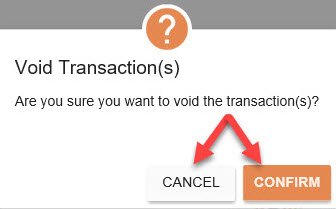
- Choose Cancel or Confirm when prompted.
A message tells you whether the transaction was voided successfully.

Is there another way to void a transaction?
Yes. Click on the transaction to pull up the side bar and then choose void.

Common questions
Should I void or refund a Converge transaction?
Void it if it hasn’t been batched and processed yet: the customer’s card isn’t charged. Once the transaction has been batched and processed, you can no longer void it, so issue a refund instead.
Updated November 2, 2026
Still stuck? Talk to a person.
Our team answers the phone.
Taking payments with Converge? See Converge from Cartis
More in Converge (UI) How To Guide
- How to change or reset your password in Converge
- How to change the language in Converge
- How to change user rights in Converge
- How to complete a new credit card sale in Converge
- How to complete a sale in Converge with a connected card reader / PIN pad
- How to connect a card reader or PIN pad to Converge by USB (Converge Connect)