
How to add a second location (MID) in Payments Insider (MPI)
To add a second location (MID) in Payments Insider (MPI), go to Account, then Business, click add new location, and enter the new Merchant ID and the last 4 digits of the bank account for that location.
On this page
Can I manage several locations from one Payments Insider login?
Yes. If you have more than one merchant account, you can add them all to one login and manage them together in Payments Insider.
How do I add a new location (MID)?
- Step 1 – From the dashboard navigation pane select Account -> Business.

- Step 2 – The Business location page displays, Click on add new location

- Step 3 – Add new location pop up window displays. Enter the Merchant ID (MID), and last 4 digits of bank account associated with this location.
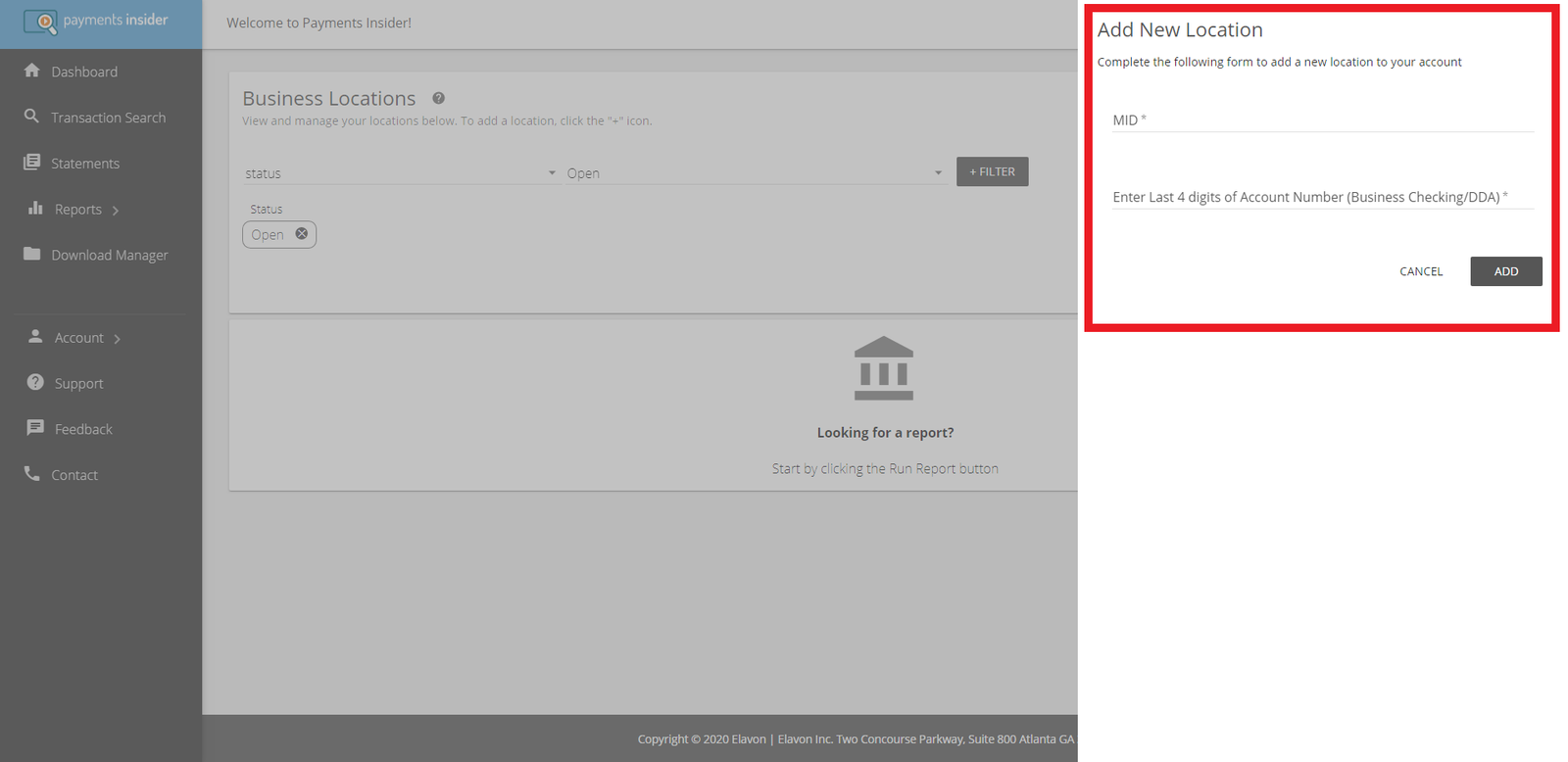
- Step 4 – Type name for new location group in text box displayed
Common questions
I don’t see the add new location option. What now?
The option is being removed. Locations should be added automatically if your user is the signer on the new account. If you are not the signer, ask the signer to add the location to your user, or contact Cartis to have it added: 1-888-712-0770 or support@cartispayments.com.
Updated November 2, 2026
Still stuck? Talk to a person.
Our team answers the phone.
Looking at your processing costs? See the Cartis payment gateway
More in My Payments Insider (MPI)
- How to add or delete users in Payments Insider (MPI)
- How to change your bank account or business details in Payments Insider (MPI)
- How to log in to My Payments Insider (MPI) with single sign-on
- How to manage and respond to chargebacks in Payments Insider (MPI)
- How to register and sign in to My Payments Insider (MPI)
- How to run, filter and export reports in My Payments Insider (MPI)