
How to run, filter and export reports in My Payments Insider (MPI)
In My Payments Insider (MPI) you can run reports for one location or all of them, filter them down to the details you need, then export them to .csv or .xlsx for reconciliation or your accounting software.
On this page
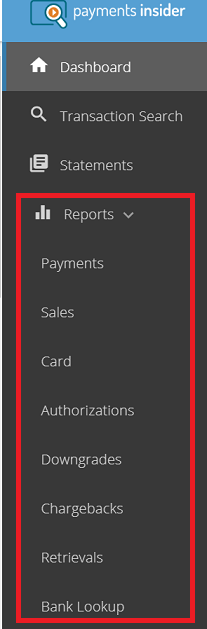
Which reports can I run in MPI?
| Report | What it shows |
|---|---|
| Payment Report | Your funding activity for up to the past 12 months, with payment history such as deposits, adjustments, fees and chargebacks. |
| Sales (Batch) Report | A summary and the details of your settlement activity. You can filter by transaction type, date and more. |
| Card Brand Report | Your deposits broken down by card brand. |
| Authorization Report | Each time a card is used, an authorization code is generated, but that doesn’t mean the transaction was approved or settled. Use this report to keep an eye on transactions that were authorized but not settled. |
| Downgrade Report | A downgrade is a change to the interchange cost (the card network fee on a transaction) after it settles. Use this report to see which transactions are downgrading and why. |
| Chargeback Report | If a cardholder disputes a payment (a chargeback), this report shows when and why it happened, and how it affects you. |
| Retrievals Report | When a cardholder doesn’t recognize a transaction, they may ask for more information. This report lets you respond before it becomes a chargeback. |
| Bank Lookup | Look up the bank that issued a card by typing in the first 6 digits of the card number. |
| DCC (dynamic currency conversion) | Only available for merchants with dynamic currency conversion on their account. |
How do I run and export a report?
- Select your desired report, the header for your selected report will display on the main section of the page.
- Select your desired filter from the drop down and then the filter criteria in the dropdown to the right of the filter field, click (Apply) filter.

- Click on export (to save report) or show results (to display the report)
Filters will appear in a row below the search criteria. To remove a secondary filter press the x next to it.
The report result batch/details pages display.

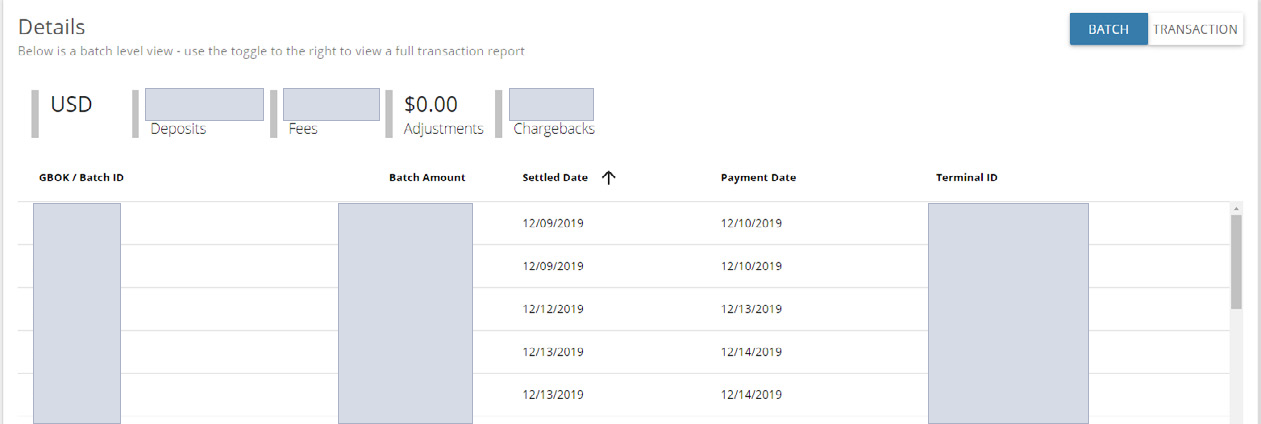
If your report allows, click on the line to pull up further details (such as transactions within a batch or side bar with further transaction details).

How do I customize a report?
Click the gear icon on a report to show, hide or reorder its columns.
To set your report preferences, go to the left menu and select Account -> Report Options -> Report Preferences.
If you need help with a report, call Cartis support at 1-888-712-0770 or email support@cartispayments.com.
Updated November 2, 2026
Still stuck? Talk to a person.
Our team answers the phone.
Looking at your processing costs? See the Cartis payment gateway
More in My Payments Insider (MPI)
- How to add a second location (MID) in Payments Insider (MPI)
- How to add or delete users in Payments Insider (MPI)
- How to change your bank account or business details in Payments Insider (MPI)
- How to log in to My Payments Insider (MPI) with single sign-on
- How to manage and respond to chargebacks in Payments Insider (MPI)
- How to register and sign in to My Payments Insider (MPI)