
My Payments Insider (MPI) dashboard overview
The My Payments Insider (MPI) dashboard is the first page you see when you log in. It gives you a quick view of how your account is doing and refreshes automatically. You can change the date range on widgets and add your own quick links.
On this page
What is on the MPI dashboard?
The dashboard is split into five sections. What you can use depends on your user access rights.
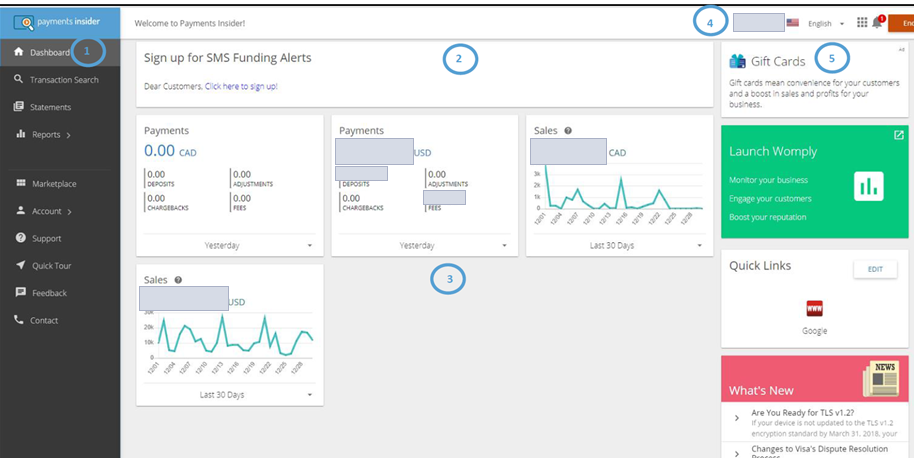
| Section | What it shows |
|---|---|
| 1 – Navigation Bar | Features and tasks you can perform depending on your user right access: transaction search, statements, reports, marketplace, account, support, quick tour, feedback and contact. |
| 2 – Account Offerings | Any new features available to you. |
| 3 – Account Data | At-a-glance charts and widgets for your account reports. Change the dates from the drop down (yesterday, last 7 days, last month, year to date and last 12 months). |
| 4 – User Status | Your user name and notification status. |
| 5 – Information | Information specific to your business, including ads, quick links and what’s new. |
How do I change the date range on a widget or chart?
Most widgets and charts let you view data for different date ranges. If a date range can be changed, a drop down arrow displays at the bottom of the widget or chart. Choose the range you want from it.
How do I add a quick link?
Quick links are shortcuts to external websites. You can add, remove and rearrange them in the quick links section.
- From quick links section, click edit to open up the quick link management page.
- Click on + to display a new row, type in link name and the link URL and click save.
Updated November 2, 2026
Still stuck? Talk to a person.
Our team answers the phone.
Looking at your processing costs? See the Cartis payment gateway
More in My Payments Insider (MPI)
- How to add a second location (MID) in Payments Insider (MPI)
- How to add or delete users in Payments Insider (MPI)
- How to change your bank account or business details in Payments Insider (MPI)
- How to log in to My Payments Insider (MPI) with single sign-on
- How to manage and respond to chargebacks in Payments Insider (MPI)
- How to register and sign in to My Payments Insider (MPI)