
Payments Insider not working? Clear your browser cookies
If Payments Insider (mypaymentsinsider.com) isn’t working properly and Elavon isn’t reporting any known issues, clear the site’s cookies (small files the site saves in your browser). Remove the cookies for both mypaymentsinsider.com and support.mypaymentsinsider.com.
On this page
Before you start
First check Elavon’s status page, https://status.elavon.com/. If it shows no known issues with Payments Insider, clear the cookies using the steps for your browser below.
How do I clear Payments Insider cookies in Microsoft Edge?
- Open mypaymentsinsider.com
- Left click to select the small lock in the browser bar:

- You will see “Cookies” under the “Permissions for this site” section
- Left click to select “Cookies” – a new box will open
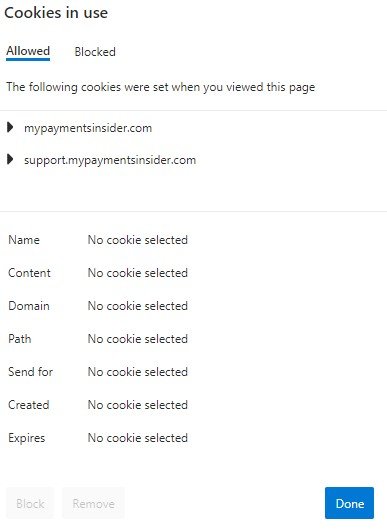
- Expand the “mypaymentsinsider.com” section, select the cookies folder.
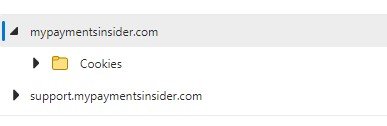
- Select remove
- Expand the “support.mypaymentsinsider.com” section, select the cookies folder
- Select remove
- Select done
How do I clear Payments Insider cookies in Chrome?
- Navigate to mypaymentsinsider.com
- Left click to select the small lock in the browser bar:

- You will see “Cookies” as an option in the drop down
- Left click to select “Cookies” – a new box will open

- Expand the “mypaymentsinsider.com” section, select the cookies folder.

- Select remove
- Expand the “support.mypaymentsinsider.com” section, select the cookies folder
- Select remove
- Select done
If Payments Insider still isn’t working after you clear the cookies, contact Cartis at 1-888-712-0770 or email support@cartispayments.com.
Updated November 2, 2026
Still stuck? Talk to a person.
Our team answers the phone.
Looking at your processing costs? See the Cartis payment gateway
More in My Payments Insider (MPI)
- How to add a second location (MID) in Payments Insider (MPI)
- How to add or delete users in Payments Insider (MPI)
- How to change your bank account or business details in Payments Insider (MPI)
- How to log in to My Payments Insider (MPI) with single sign-on
- How to manage and respond to chargebacks in Payments Insider (MPI)
- How to register and sign in to My Payments Insider (MPI)